Troubleshooting Guide: Journal Import Tool
This job aid contains instructions on how to download the Journal Import tools for General Journals and Internal Transfers, creating journals in the import tools, and importing journals into ARC.
Last Revision: August 2025
For more information on the process of journal entry creation in ARC please refer to this training guide: Creating and Approving Internal Transfer Journal Entries in ARC
Details
- Create a new folder on your workstation. Give the folder a recognizable name, such as “ITF Journal Uploads” or “General Journal Uploads”.
- Log in to https://my.columbia.edu/, click ARC, and scroll down to the Resources section. Click the Journal Entry Spreadsheet Upload tab.
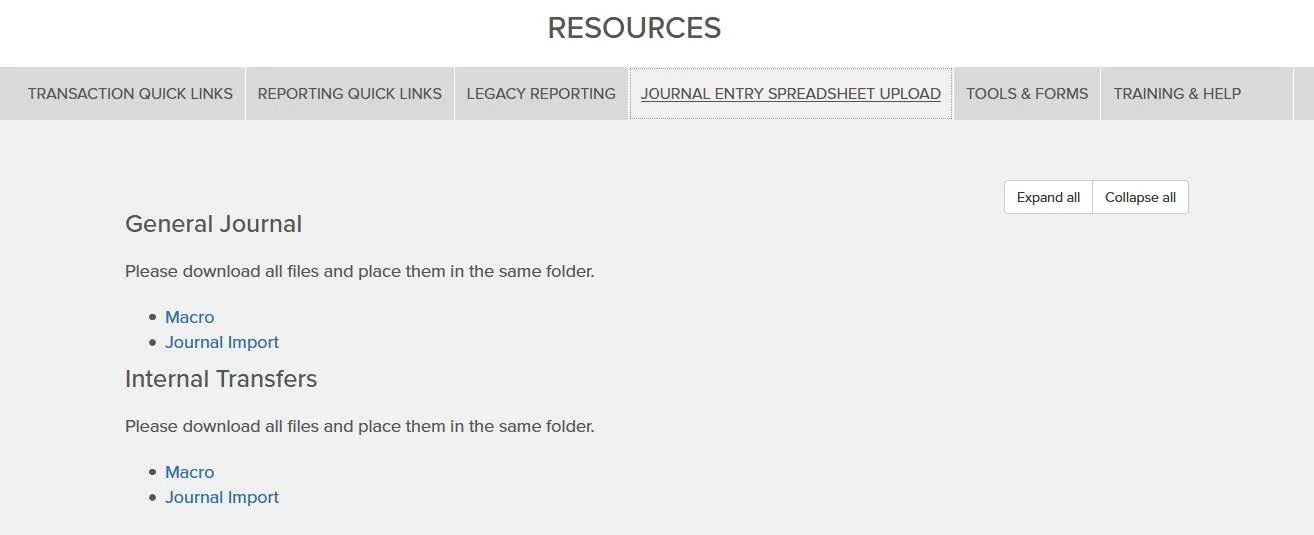
- Right click on the Macro and Journal Import links and select Save link as… from the menu.
- Save each file in the folder you created. Both the JRNLMCRO_WS.xlam and the JRNL1_WS_ITEF.xlsm (internal transfers) or the JRNLMCRO_WS.xlam and the JRNL1_WS_JE.xlsm (General Journal) files must be saved in the same folder.
If you are using both ITF and General Journal upload templates, the files for each must be stored in separate, respective folders.
After download, the folder should contain the following two files for Internal Transfers:

Or, the following two files for General Journals:

5. Right click the JRNL1_WS_ITEF or JRNL1_WS_JE file and click Properties.
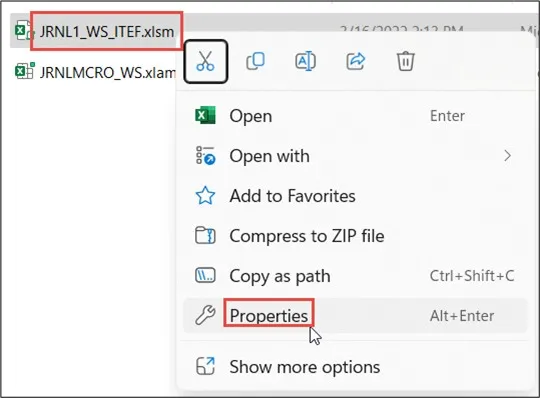
The Properties window appears.
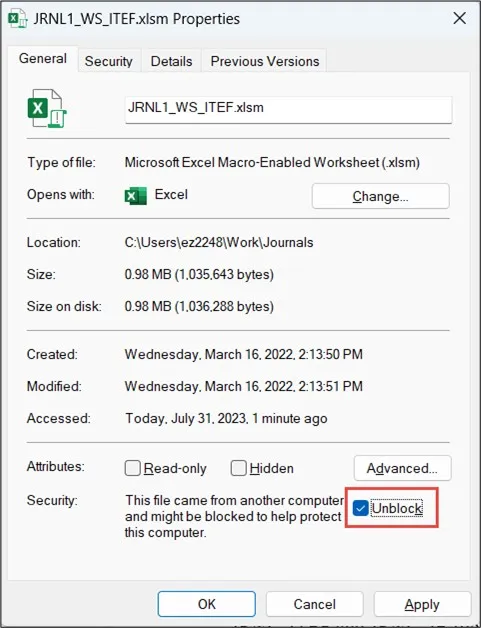
6. For Security, click to place a check in the Unblock option.
Note: The Journal Import tool works only on PC’s running Windows operating systems. The Journal Import tool is not compatible with computers running MacOS.
- Open the folder and double click on JRNL1_WS_ITEF file to open the Journal Import Tool for Internal Transfer Journals or JRNL1_WS_JE file to open the Journal Import Tool for General Journals.
Note: The first time you open these files you will be prompted to Enable Editing and to Enable Content. Click those buttons on the
top of the spreadsheet.
- From the Home screen click the New button.
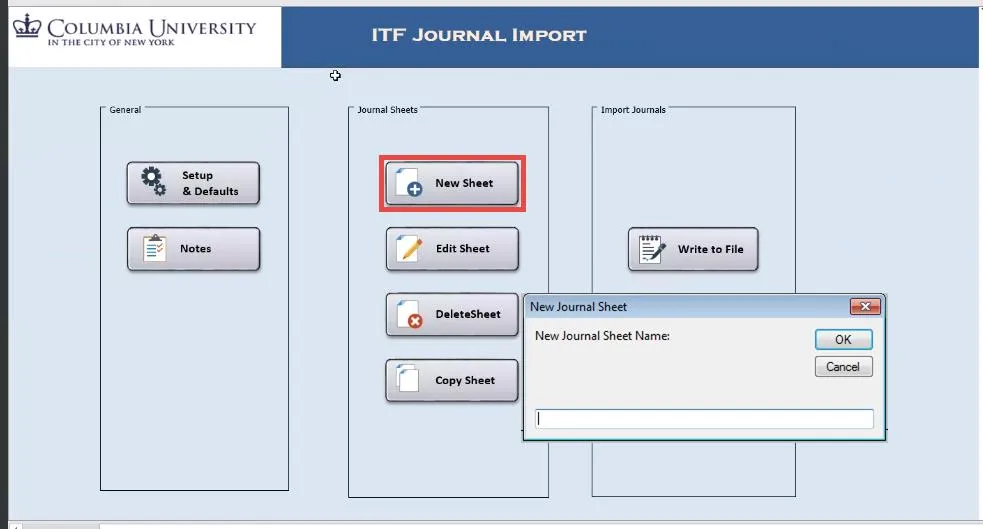
- Type a New Journal Sheet Name and click OK.
- In the new Journal Sheet, click the + button in the Journal Header Section.

The New Journal Header window appears.
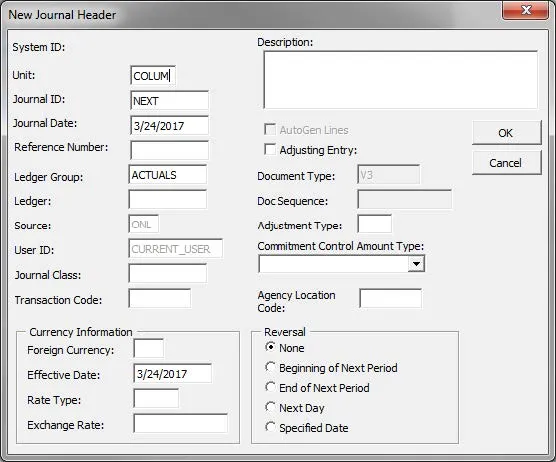
- Enter a journal Description and click OK. You can edit Business Unit, Journal Date, Ledger Group, if required.
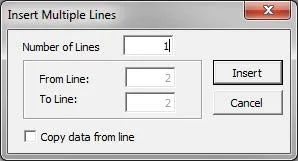
- Click the Add Line or Add Lines buttons to add Journal Lines to the journal. If you clicked the Add Lines button you will be prompted to Insert the Number of Lines.

- Enter ChartField values into the journal rows. This can be achieved either through copying and pasting or manually typing in the values.
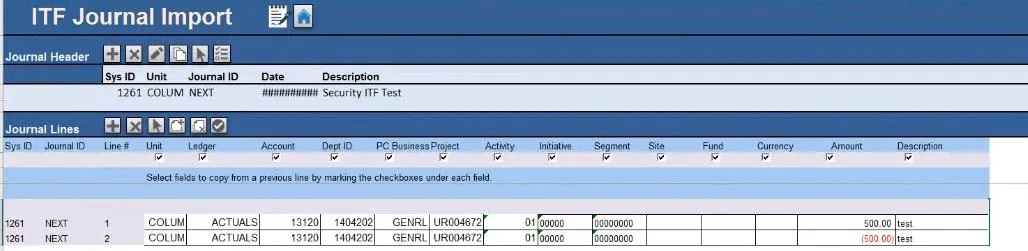
Note: When copying and pasting ChartStrings from another Excel file, make sure each column in your source spreadsheet is aligned with the journal template columns and that the values are pasted as values.
Make sure the ChartFields Deptid, Activity, Initiative, Segment, Sit, Fund, and Function are formatted as text in your source so that you can copy and paste the leading zeroes into the template. Changing the formats of the cells in the template will result in errors when you import the journals.