CU Marketplace Approvers Quick Guide
This Quick Guide covers how to assign a documents (Requisitions, Vouchers, Change Requests) awaiting approval to your yourself in order to review it and how to approve or return it .
For detailed instruction on using the CU Marketplace, including how to manage approvals, refer to the CU Marketplace for Approvers Training Guide.
For instructions on modifying your Profile settings, refer to the Modifying Profile Settings in the CU Marketplace job aid.
Last Revision: May 2025
Details
You do not need to assign a Requisition to yourself in order to only approve it. However, if you need to take any other action on a Requisition, such as inserting an Ad-Hoc Approver, returning the Requisition to the Requester, or rejecting it, you must first assign it to yourself.
Navigate to the Finance Buying and Paying website, click the CU Marketplace logo, and login using your Single Sign On.
The JAGGAER application launches.

Note: The CU Marketplace will automatically timeout after thirty minutes of inactivity, consistent with other University Enterprise Systems.
-
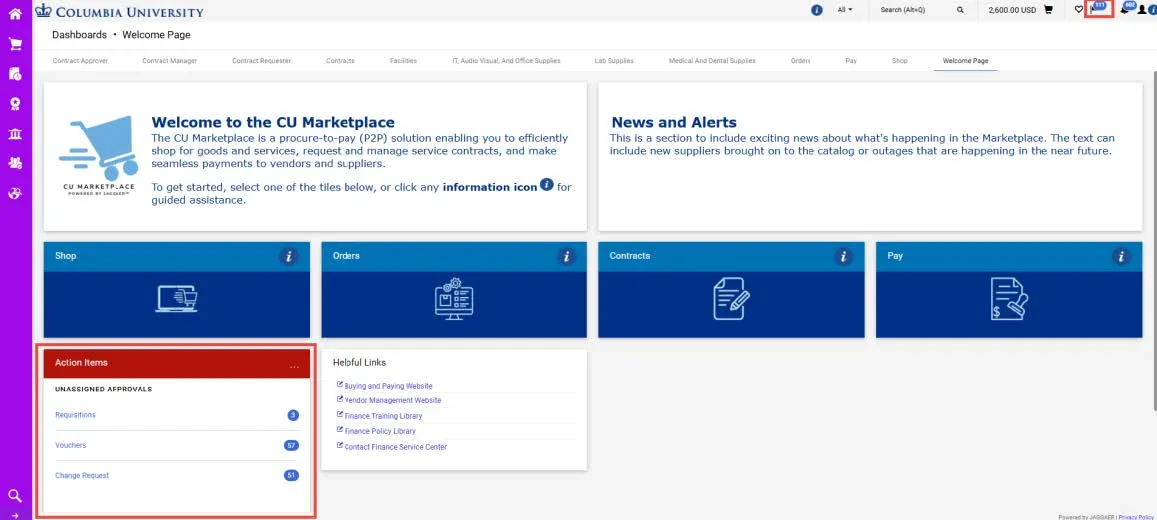
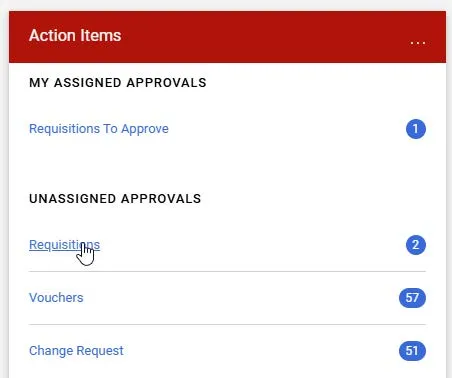
From Action Items list., click the Document Type for the documents you want to review for approval. The Approvals screen appears displaying the list of documents based on what you selected and organized into accordion sections. Expand the accordions to view the documents.
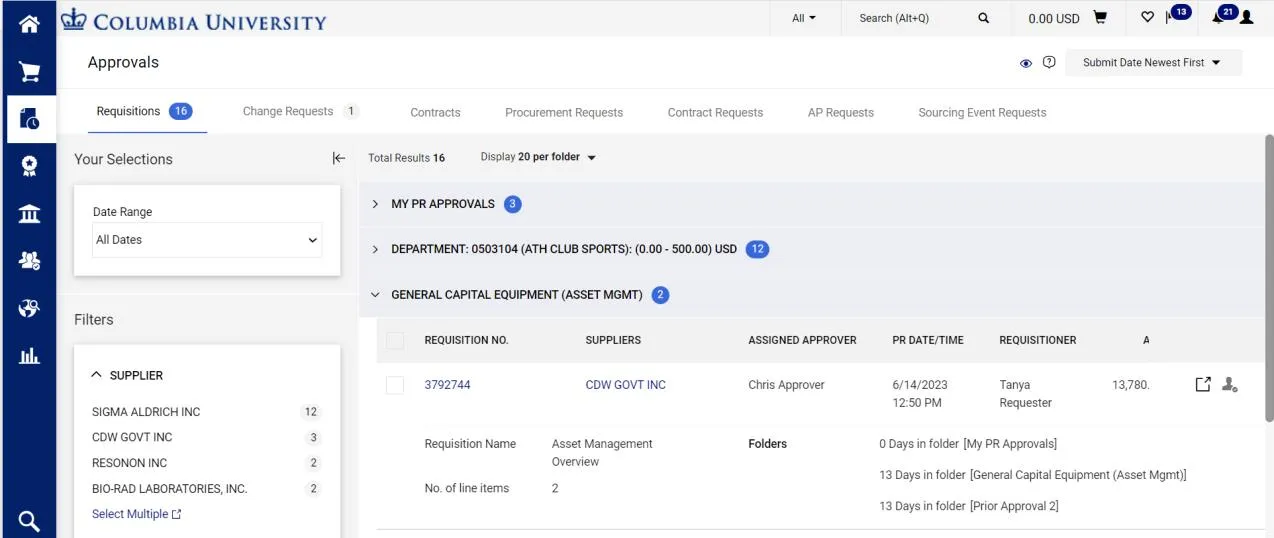
- Click the Document No. (Requisition No., Voucher No., etc.) for the document you want to view. The document screen appears.
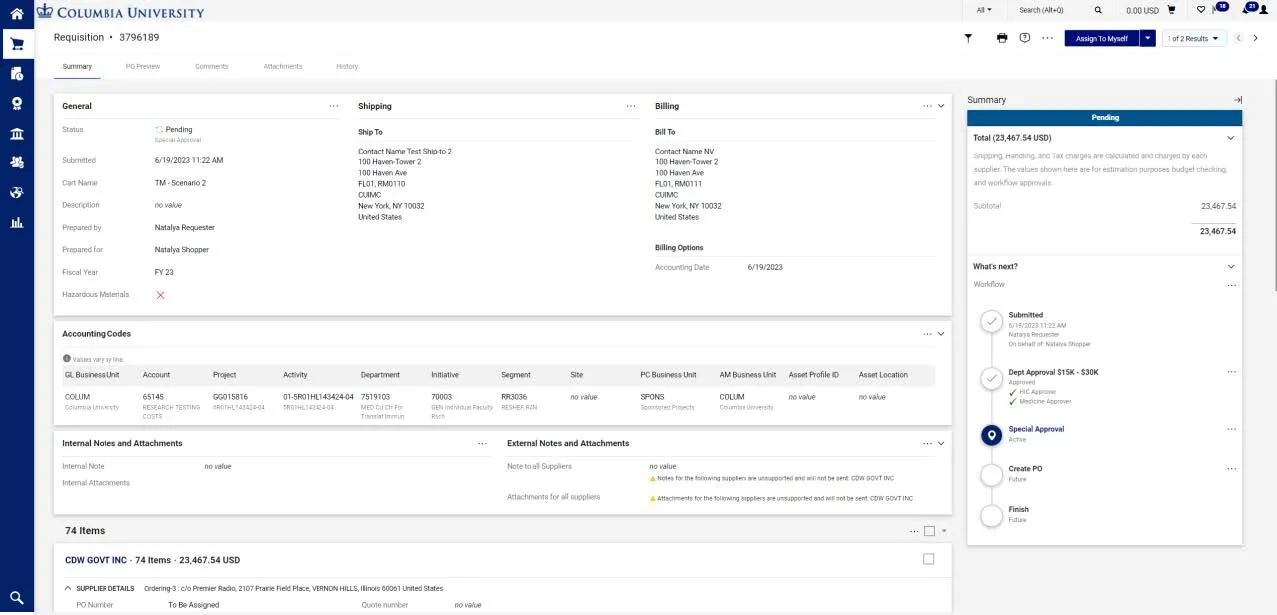
- When viewing the document screen, click the Assign to Myself button. The document will be ready for you take action and lock it so that other Approvers cannot work with it.
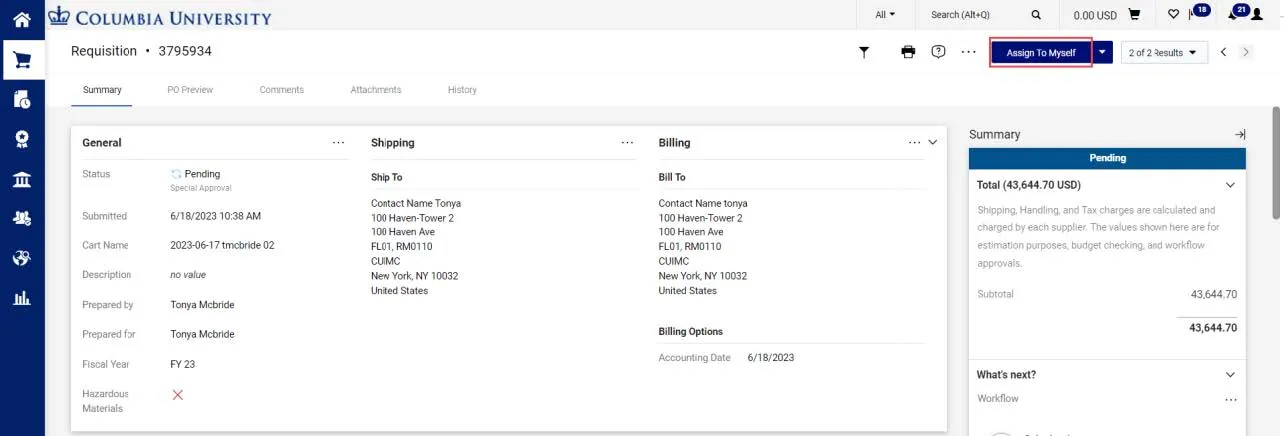
In order to take actions on a document, such as inserting an Ad-Hoc Approver, returning to the Requester, or rejecting it, you must first assign it to yourself.
The actions below are the same for Requisitions, Vouchers, or Change Requests.
Refer to the CU Marketplace for Approvers Training Guide, for more details.
Inserting an Ad-Hoc Approver into Workflow
You can insert an additional approver into the workflow to review the document, if needed. The Ad-Hoc Approver you insert will review in the next approval step after you approve it.
Note: An Ad-Hoc Approver must have the CU Marketplace Approver role.
- Click the Ad-Hoc Approver Select link at the bottom of the General section. The Ad Hoc Approver window appears.
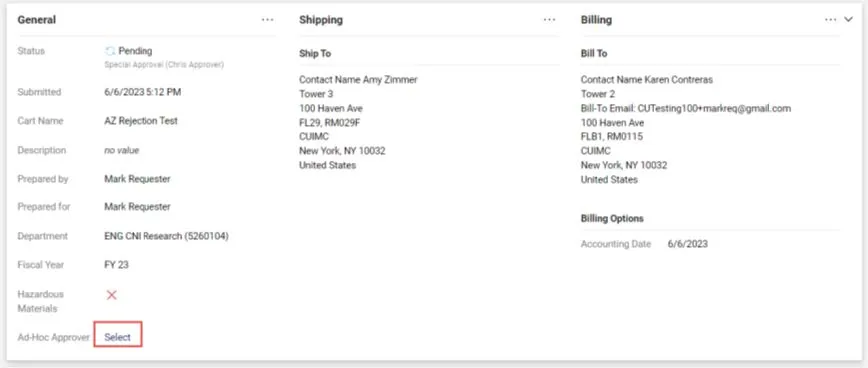
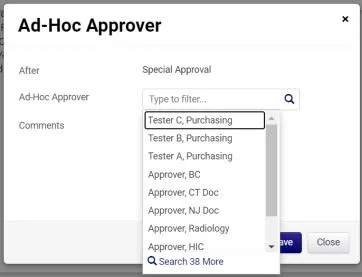
- Click into the Ad-Hoc Approver field and select the Approver from the list. You can type to filter the list of names.
- Click Save. The Document will indicate the Ad-Hoc Approver, which can be changed, if necessary, and the Summary panel will indicate the extra approval workflow step.
Approving
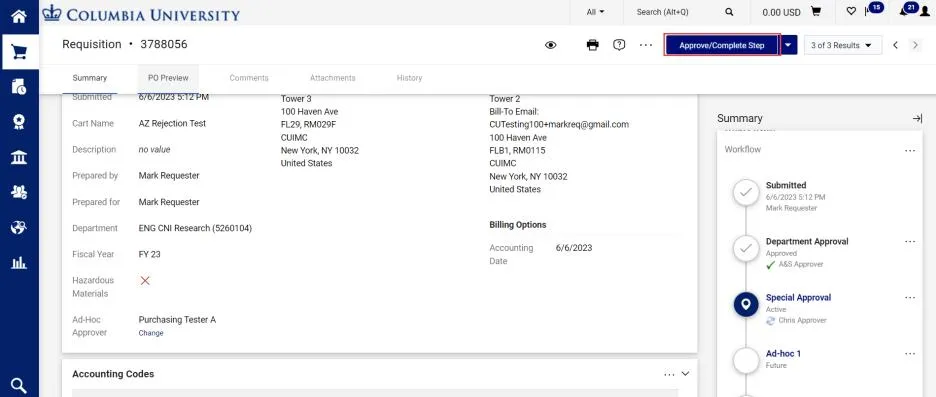
After assigning the document to yourself and reviewing it, click the Approve/Complete Step button. The Summary panel will indicate that you have approved and will show the next Active step in the approval workflow.
Returning to the Initiator
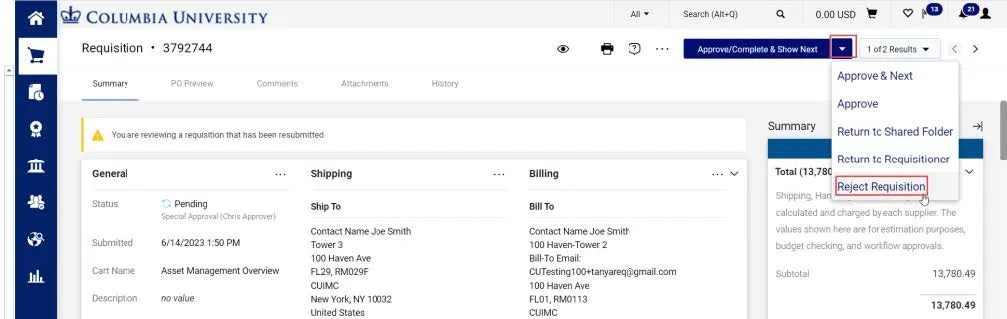
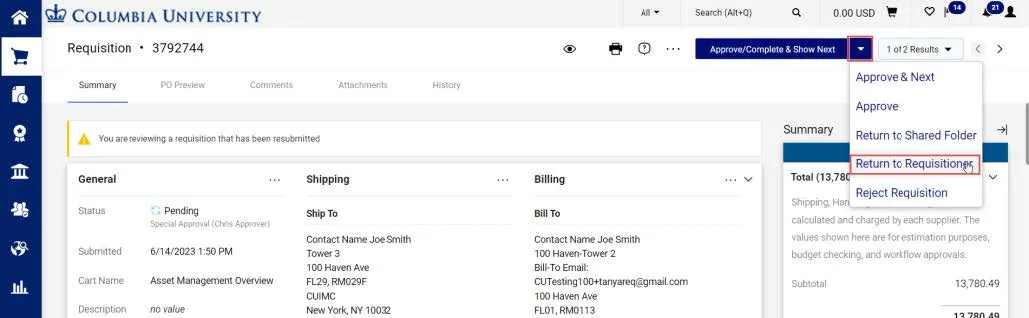
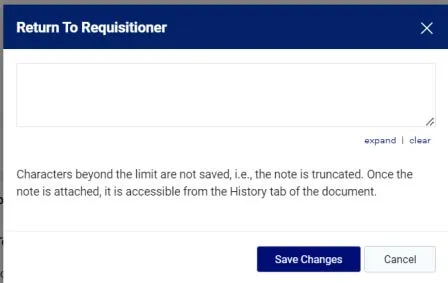
- Click the dropdown arrow next to the Approve/Complete & Show Next button and click Return to Requester/Requisitioner/Voucher (depending on the document type you are reviewing). The Return to Requisitioner window appears.
- Type a Note informing the Initiator why you are returning the document to them so the Requester/Initiator can address the issue. Click Save Changes.
Returning a PO Voucher
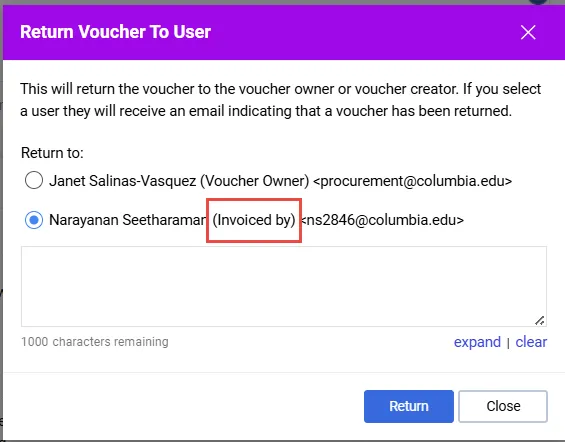
If you need to return a PO Voucher, you should make that the Voucher goes back to the Initiator and not the Purchase Order (Requisition) Initiator. When the Return window appears, it will list both the Voucher Initiator (Invoiced by) and the Purchase Order Initiator (Voucher Owner).
Select to Return to: Invoice by so that the Voucher Initiator can make the necessary changes.
Rejecting
Reject only when you want to terminate the transaction and prevent it from being processed. The Requester/Initiator will not be able to make changes and resubmit it into workflow.
- Click the dropdown arrow next to the Approve/Complete & Show Next button and click Reject. The Reject window appears.
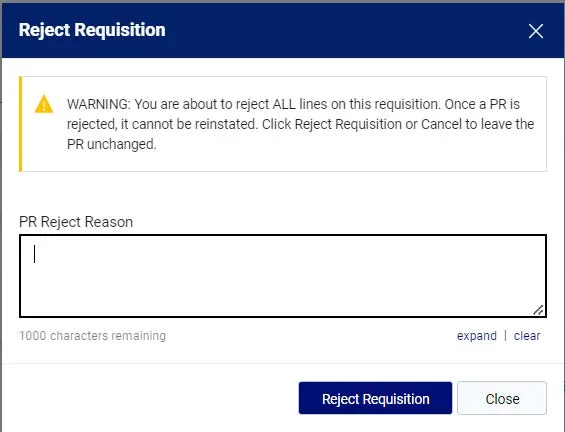
- Type a PR Reject Reason informing the Requester of why you are rejecting. Click Reject.