Making Payments with Candex Quick Guide
This Quick Guide covers how to create a Requisition for a monetary Prize, Award or Honoraria payment, and how to include an expense reimbursement associated with a payment in the CU Marketplace utilizing Candex.
For information, refer to the Policy for Making Payments with Candex and the Making Payments with Candex website.
Refer to the Payments to Foreign Nationals and Entities policy and the associated Allowable Payments by Visa Type Chart to ensure that a payment can be made.
You must have the Procurement Initiator role in order to create the Requisition.
Last Revision: January 2026
Details
Access Candex from the CU Marketplace to submit a Requisition for a Prize,Award, or Honoraria payment.
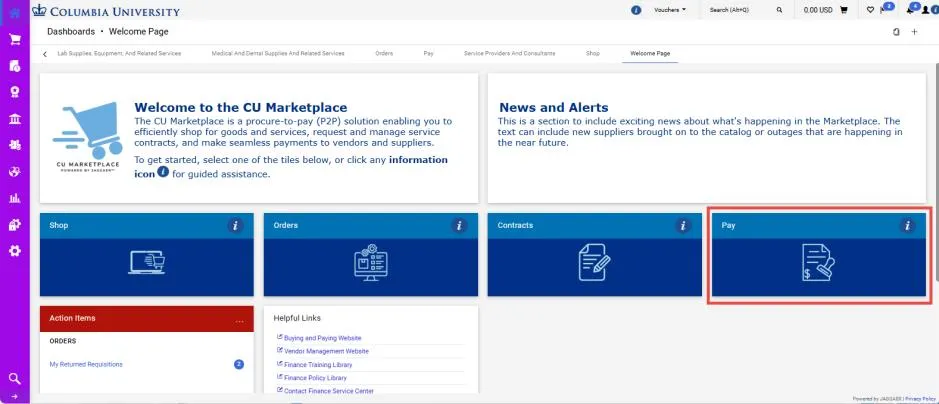
1. Navigate to the Procurement Paying website, click the CU Marketplace logo, and login using your Single Sign On. The JAGGAER application launches.
Note: The CU Marketplace will automatically time out after thirty minutes of inactivity, consistent with other University Enterprise Systems.
2. Click the Pay tile. The Pay dashboard appears.
3. In the Prizes and Awards, Honoraria and Related Reimbursement section, click the Candex tile.
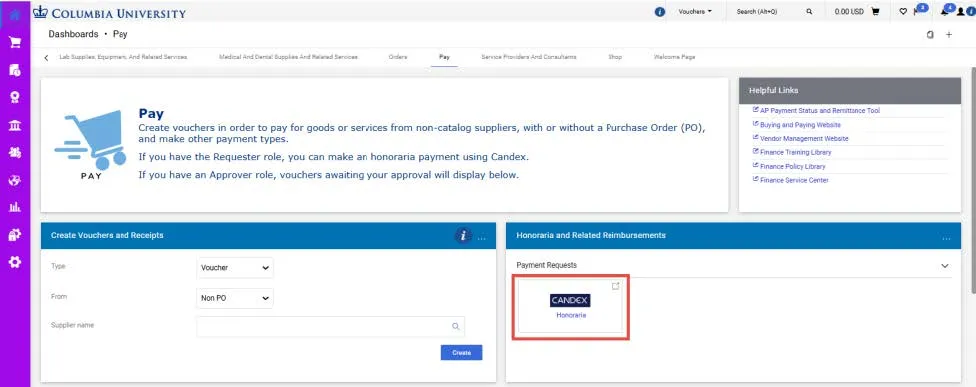
You will then “PunchOut” to the Candex website.
Notice the gray bar at the top of the Candex website indicates that you are punched out from the Marketplace. You can click the Cancel PunchOut button to return to the Marketplace, if needed.
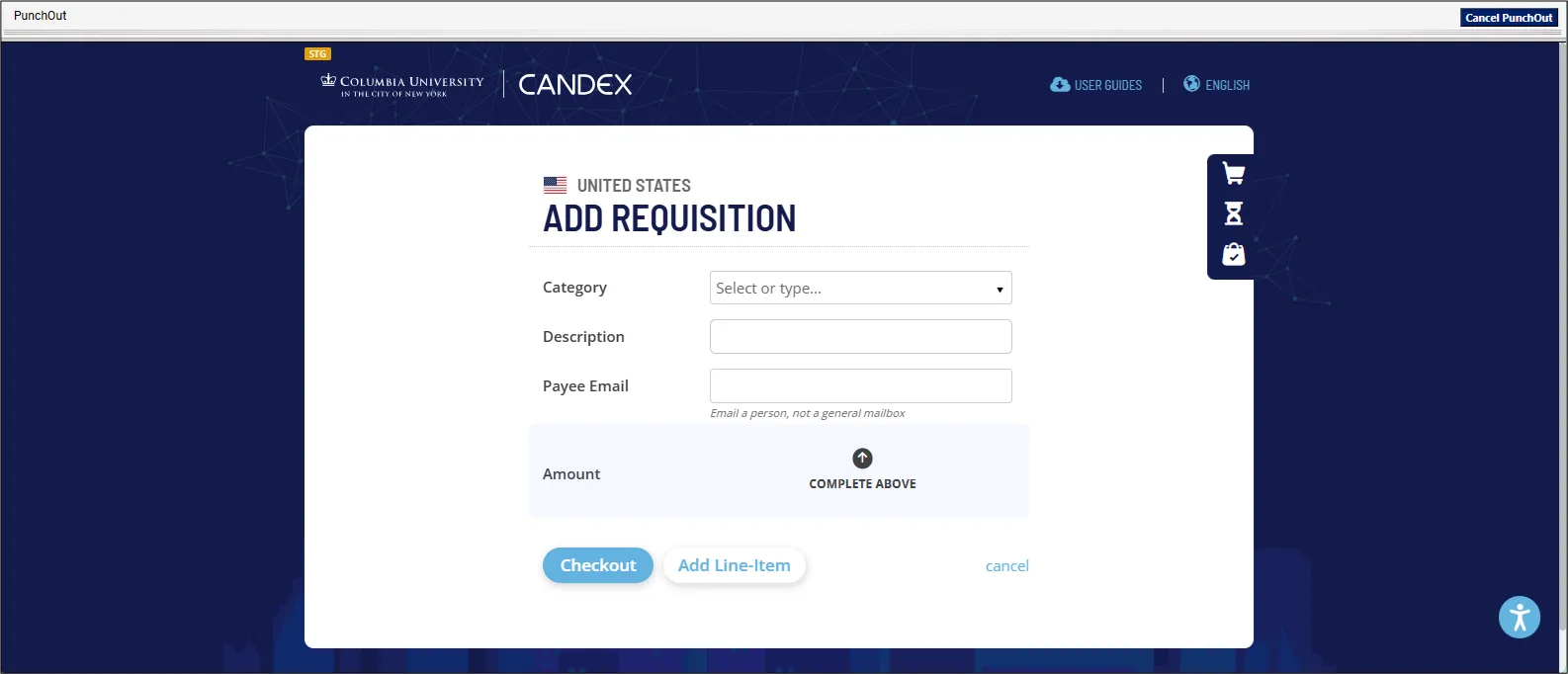
1. Select the Category of the payment.
2. Enter the Description for the payment.
3. Enter the Payee Email address. The email address must be a for a specific person, not a general mailbox.
After entering the Description and Vendor Email, the Amount field will appear.
4. Enter the Amount. Honoraria, prizes, and awards may require withholding when annual payments reach $2,000 for U.S. individuals or any amount for foreign individuals; withholding is processed through Candex.
5. Enter the Payee Name.
You can type optional Comments.
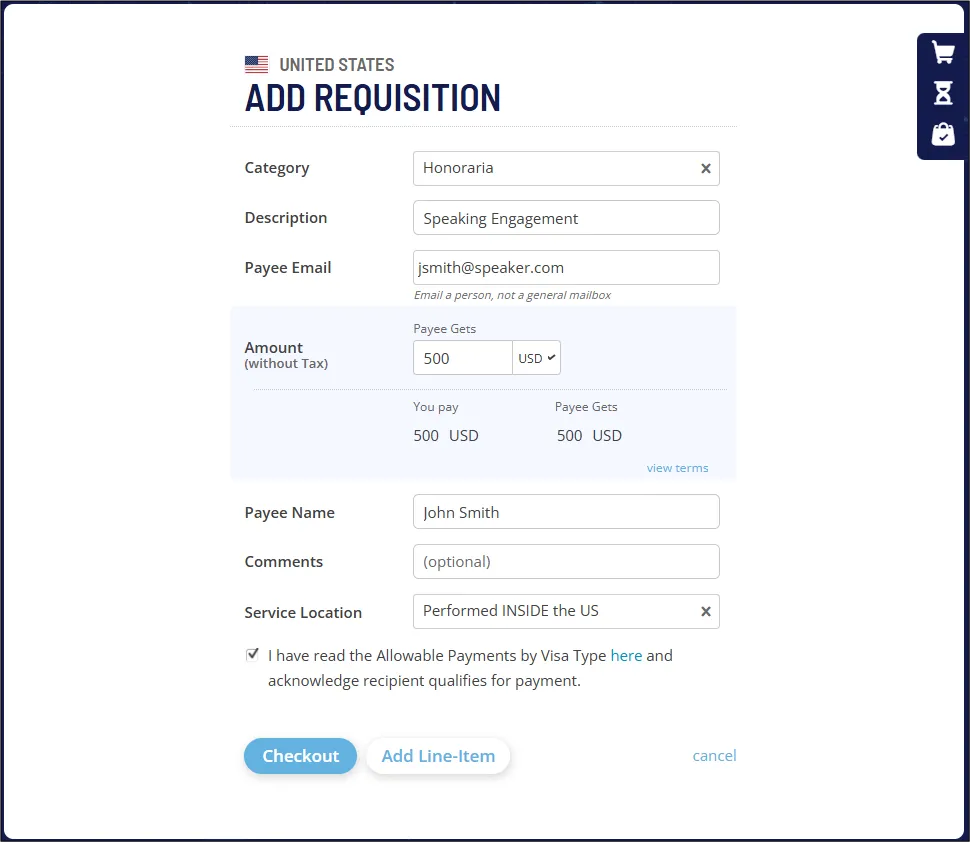
6. Click the checkbox I have read the Allowable Payments by Visa Type and acknowledge recipient qualifies for payment, which is required in order to checkout. You can click the link to review the table on the website.

7. Click Checkout to complete Requisition details or click Add Line-Item to add an additional payment to your Requisition.
You can send your payee the Receiving a Columbia University Payment via Candex guide to assist them in registering.
Adding a Reimbursement
After clicking the Add Line-Item button, the Cart icon will show that you have 1 item. The form will be ready for you to enter a new item.
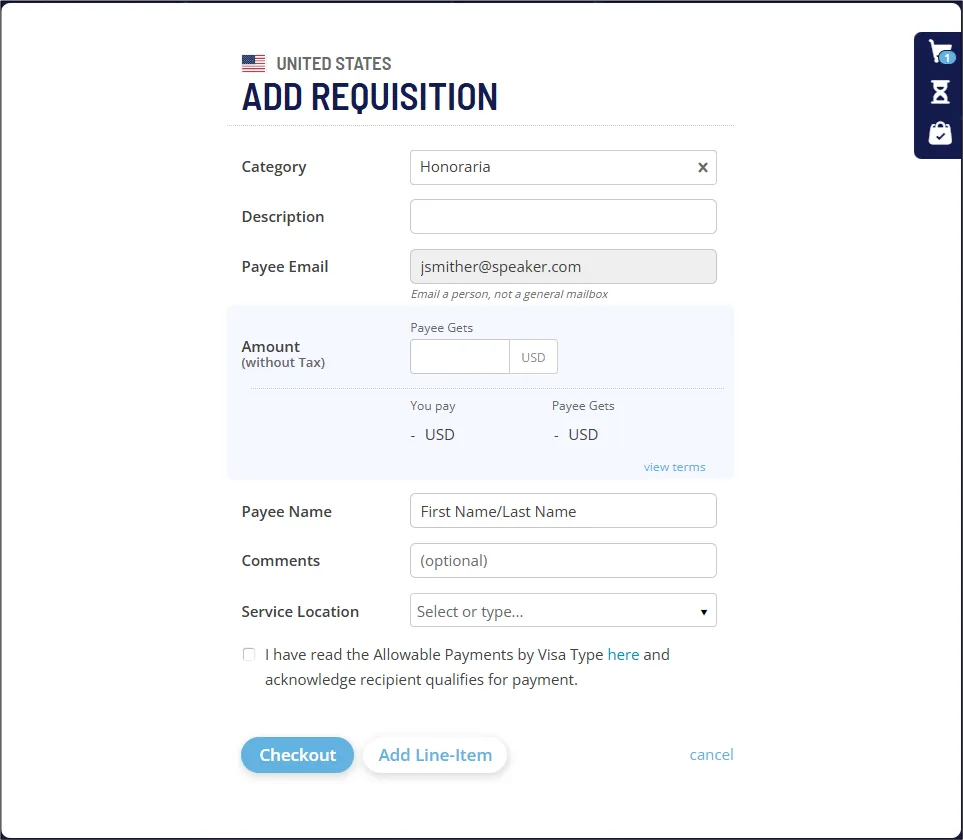
1. Click the X icon to remove Honoraria from the Category field and select Reimbursement from the dropdown.
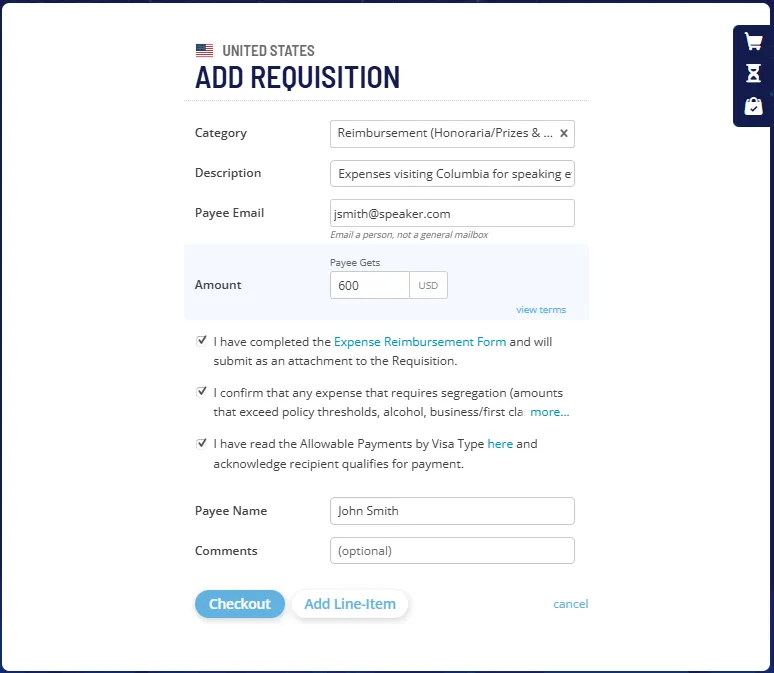
2. Enter the Description that explains the business reason for the reimbursement.
3. Enter the Payee Email.
4. Enter the Amount.
5. Click the link to download the Expense Reimbursement Form.
See the instructions in the Submitting the Requisition section on how this form must be completed.
6. Click the checkboxes for the following:
I have completed the Expense Reimbursement Form and will attach to Jaggaer
I have read the Allowable Payments by Visa Type and acknowledge recipient qualifies for payment.
I confirm that any expense that requires segregation is not part of this requisition request.
7. Enter the Payee Name.
You can type optional Comments.
8. Click the Checkout button. The Cart page appears.
9. Click the Checkout Button.
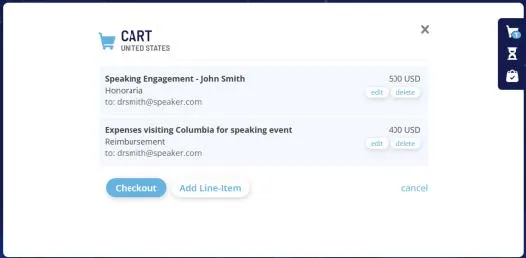
At checkout you must ensure that the Ship To/Bill To Addresses and the ChartString information is complete and correct. If you created default values in your Profile (refer to the Modifying Profile Settings in the CU Marketplace job aid), those values will be populated. You must attach documentation such as a memo and/or flyer describing the event, business purpose, and reason for payment. If you are including a Reimbursement, you must also attach the Expense Reimbursement Form and the payee’s Receipts
1. On the Shopping Cart page, click the Proceed to Checkout button.
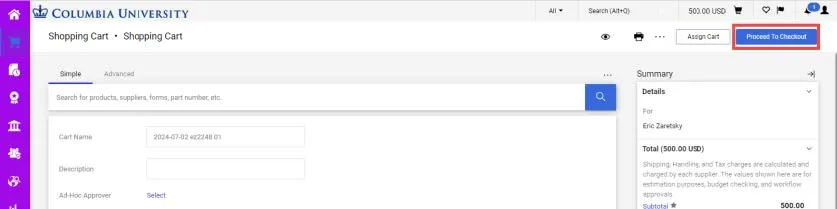
The Checkout screen appears displaying the Requisition. If your payment is for both an Honorarium and Expense Reimbursement, the Requisition will have two lines; one for the Honorarium and the other for the Reimbursement.
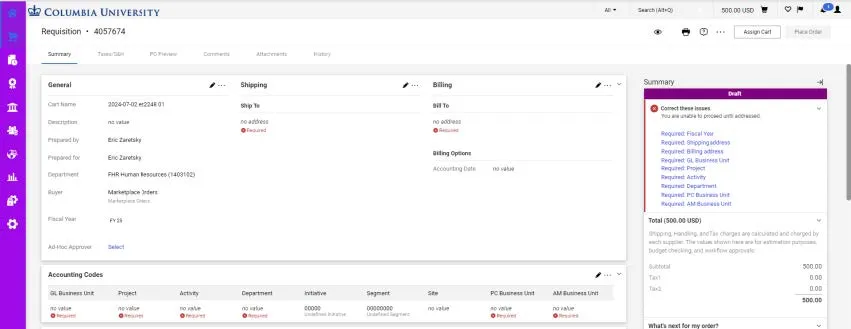
The Status panel on the right indicates all the required information you must complete. You can click the link to access the field to update it. Fields within the form that require completion will be labeled Required.
2. Complete the Shipping/Billing Addresses and Accounting Codes as needed. Refer to the CU Marketplace Requesters Quick Guide for instructions.
Note: The Ship To and Bill To addresses should be entered as the Procurement Initiator’s department address and not the Payee’s address. The Payee enters their address when they register in Candex.
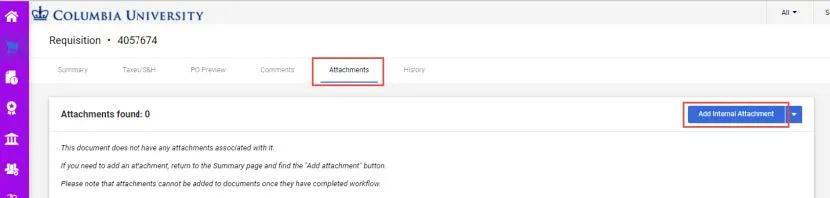
3. Click the Attachments tab to upload the required documentation, such as a memo and/or flyer describing the event, business purpose, and reason for payment. If you your Requisition includes a Reimbursement, upload the completed Expense Reimbursement Form and the payee’s Receipts. The Expense Reimbursement Form must be completed in USD. For each receipt in a foreign currency, attach a screenshot from the Oanda Currency Conversion website of the currency conversion to USD. Click the Add Internal Attachment button to upload your document.
4. Click the Place Order button.

The Cart is now entered as a Requisition into approval workflow. After the Requisition is approved and the Purchase Order is issued, the payee will receive an email from Columbia University via Candex, which contains an invitation to register with Candex, complete their payment and banking details, and upload their W-9 or W-8 form. Candex will pay the recipient. If the payment is for both an Honorarium and Expense Reimbursement, the payee will receive two separate payments; one for the Honorarium and the other for the Reimbursement.