Fiscal Year End Document Searches in the CU Marketplace
The CU Marketplace provides powerful search functionality with results that can be filtered and refined. Four document searches are available to help you quickly identify and review your open Purchase Orders, Requisitions, Vouchers, and Change Requests.
Departments are responsible for reviewing and closing their transactions. Use the Open Transaction Searches to decide which documents should be closed before fiscal year end and which should carry forward into the next fiscal year.
For more in-depth details about searches and reports, refer to the Reporting in the CU Marketplace Training Guide.
Accessing the Open Transactions Search Lists
1. Navigate to the Procurement Buying website, click the CU Marketplace logo, and log in using your Single Sign On. The JAGGAER application launches.

2. Click the Orders icon, then click Search, and select any type of document.
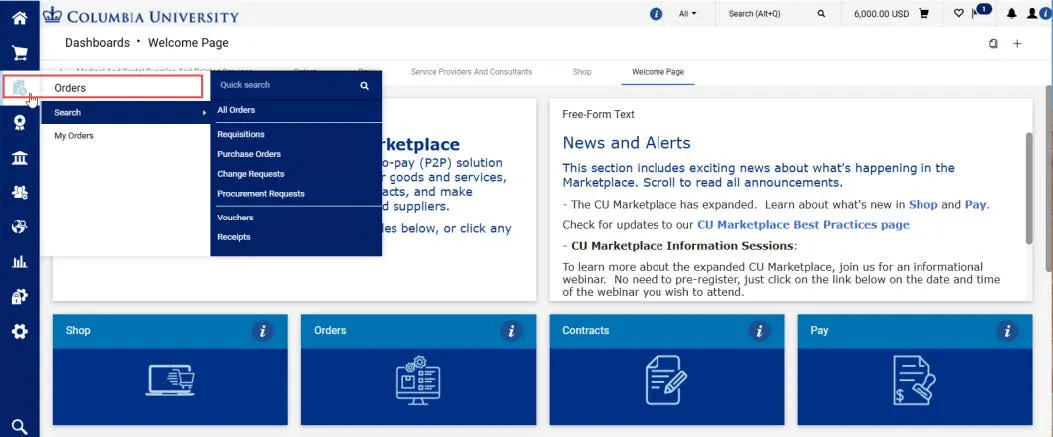
The Search screen appears for the type of document you selected.
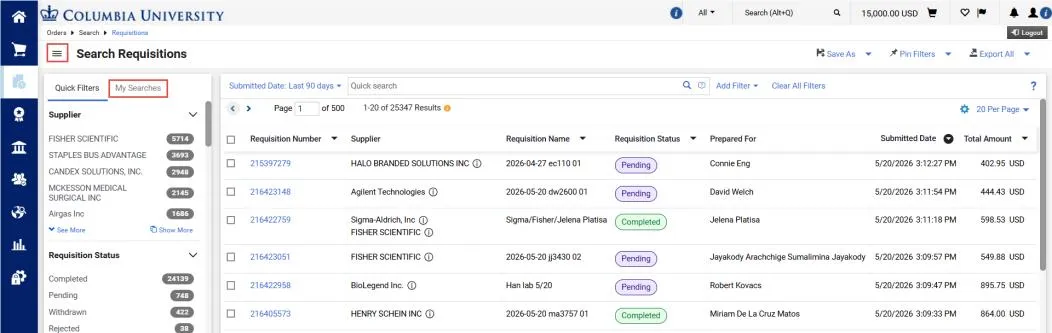
3. Click the Show Side Panel icon to view the Quick Filters panel and select My Searches. The My Searches panel is displayed.
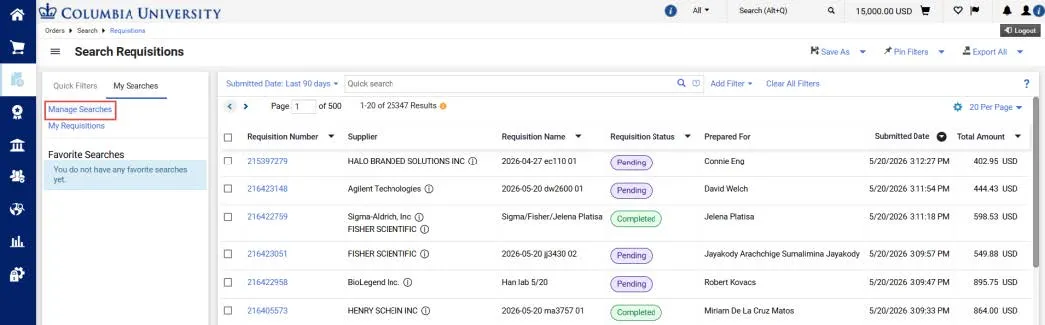
4. Select Manage Searches. Personal and Shared Search Folders appear.
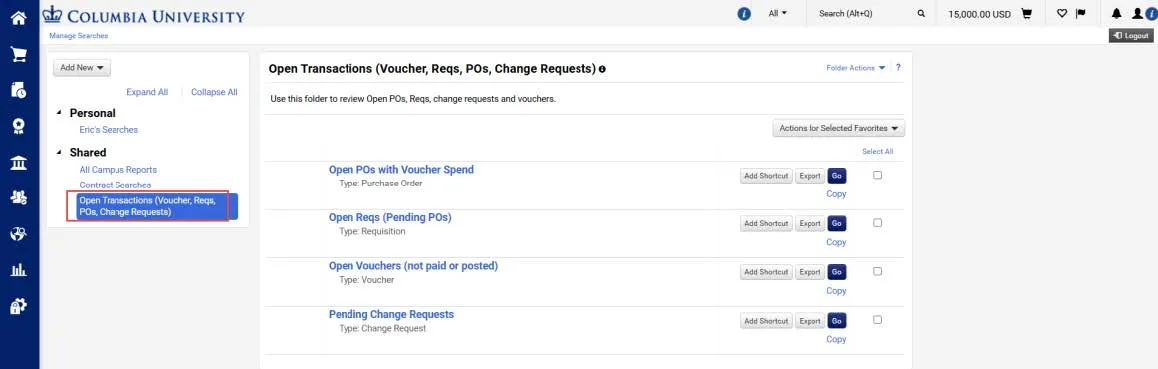
5. Select the Open Transactions (Voucher, Reqs, POs, Change Requests) folder. The four Open Transaction Searches are listed. Click the desired Search to view.
Viewing Open Transaction Searches
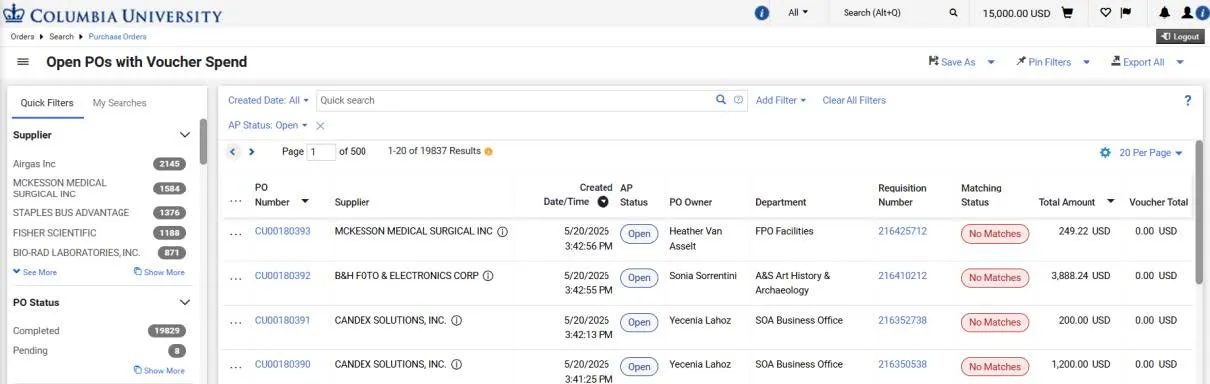
The Open POs with Voucher Spend Search displays all open Purchase Orders along with a Voucher Total column showing the cumulative payments made against each PO to date. Use the Department column to locate your relevant Purchase Orders, and apply a Filter to narrow the list to your specific Department. For guidance on using filters, refer to the How do I use Filters in my Searches to view documents? CU Marketplace Tip.
Click the PO Number to view the Purchase Order. If you need to close the Purchase Order you are viewing, refer to the CU Marketplace Closing a PO Quick Guide for guidance.
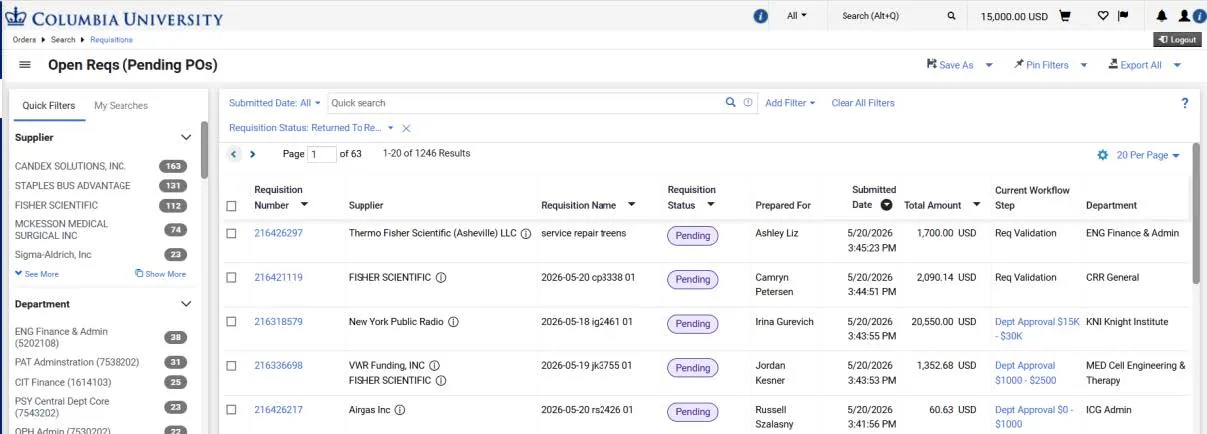
The Open Reqs (Pending POs) Search displays all Requisitions that have beensubmitted into workflow but have not yet been fully approved and issued as Purchase Orders (status of Pending). Use the Department column to locate your relevant Requisitions, and apply a Filter to narrow the list to your specific Department. For guidance on using filters, refer to the How do I use Filters in my Searches to view documents? CU Marketplace Tip.
Click the Requisition Number to view the Requisition. From there, you have two options:
- Withdraw it from approval workflow to close it. Refer to the How do I Edit a Requisition or Voucher Submitted for Approval? CU Marketplace Tip for guidance.
- Send a Comment to an Approver to remind them to approve it or return it to you for edits. Refer to the Use Comments to Notify and Communicate with Approvers CU Marketplace Tip for guidance.
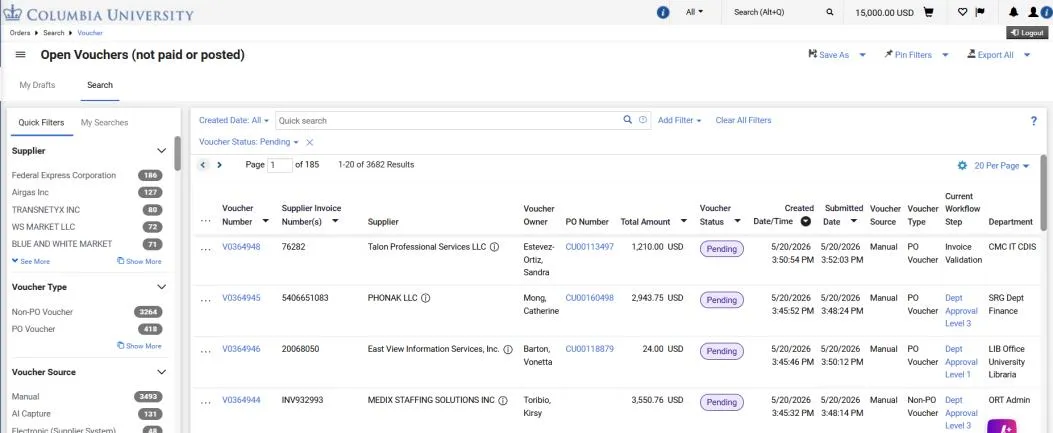
The Open Vouchers (not paid or posted) Search displays all Vouchers that have been submitted into workflow but have not yet been fully approved and paid or posted (status of Pending). Use the Department column to locate your relevant Vouchers, and apply a Filter to narrow the list to your specific Department. For guidance on using filters, refer to the How do I use Filters in my Searches to view documents? CU Marketplace Tip.
Click the Voucher Number to view the Voucher. You can send a Comment to an Approver to remind them to approve it or return it to you for edits or deletion. Refer to the Use Comments to Notify and Communicate with Approvers CU Marketplace Tip for guidance.
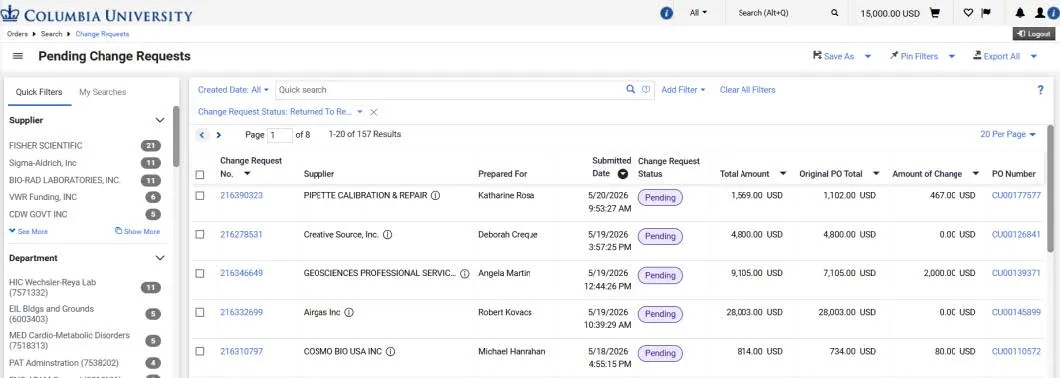
The Pending Change Requests Search displays all Change Requests submitted into workflow that have not yet been fully approved (status of Pending). Although no Department column is available, you can use the Supplier and Prepared For columns to help you identify relevant Change Requests. Refer to the How do I use Filters in my Searches to view documents? CU Marketplace Tip for guidance.
Click the Change Request No. to view the Change Request. You can send a Comment to an Approver to remind them to approve it or return it to you for edits or deletion. Refer to the Use Comments to Notify and Communicate with Approvers CU Marketplace Tip for guidance.
Please contact the Finance Service Center.
You can log an incident or request a service via Service Now.