CU Marketplace Tip: Use Comments to Notify and Communicate with Approvers
Comments allow Initiators and Approvers to communicate back and forth within a Requisition or Voucher. An email notification is sent to the recipient via email indicating that a Comment has been added and a conversation thread is contained within the document. Some reasons for the use of Comments are shared below to help you seamlessly communicate within the CU Marketplace.
- Be proactive and notify your Approver that a document is awaiting their approval.
- Request your Approver return the document to you for editing or if it was submitted with an error.
- Respond to Approvers asking for additional information or documentation.
- Add attachments after the document is submitted into workflow without asking for it to be returned.
Details
From within a Requisition or Voucher document:
1. Click the Comments tab.
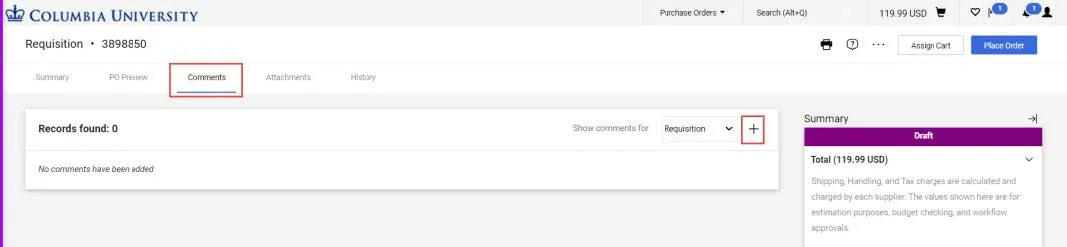
2. Click the New Comments icon. The Add Comment screen appears.
3. Type your Comment.
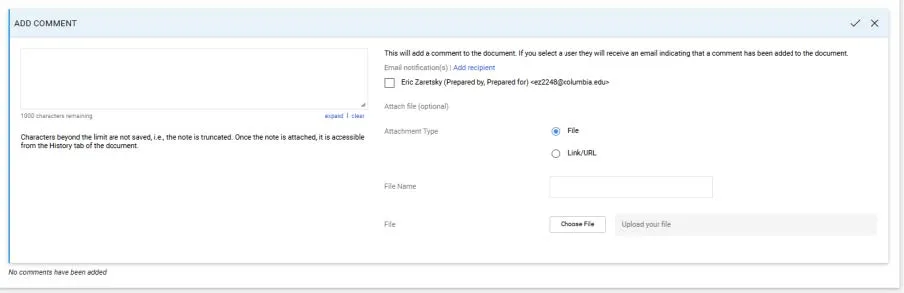
You can select the individuals listed who have worked with your document to receive your Comment as an Email Notification, or, click Add recipients to search for Approvers or other individuals you wish to send your Comment to.
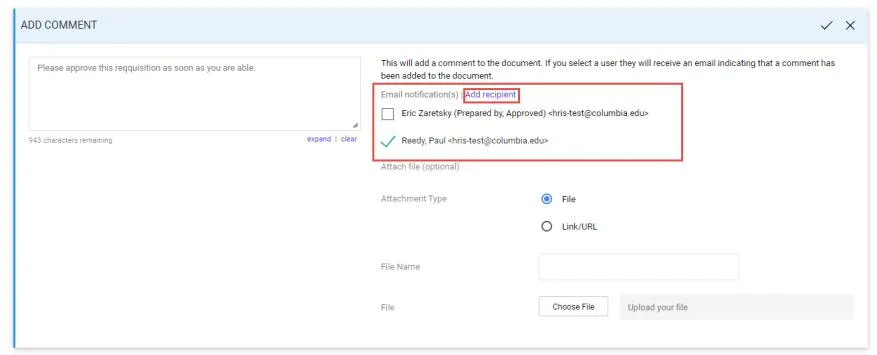
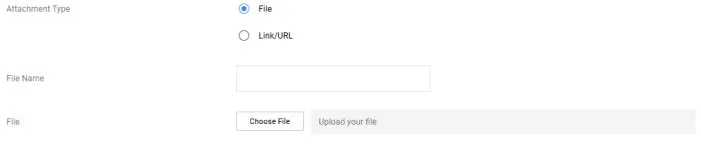
4. You can Attach a File or Link/URL as part of your Comment. Select the Attachment Type.
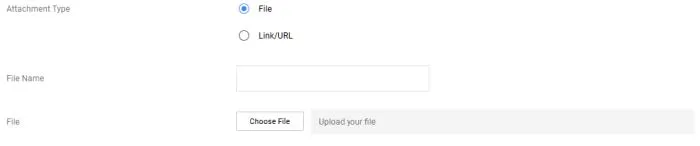
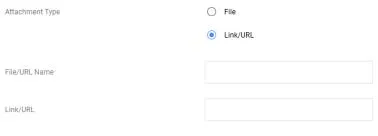
Depending on the Attachment Type, choose your File or provide the Link/URL.
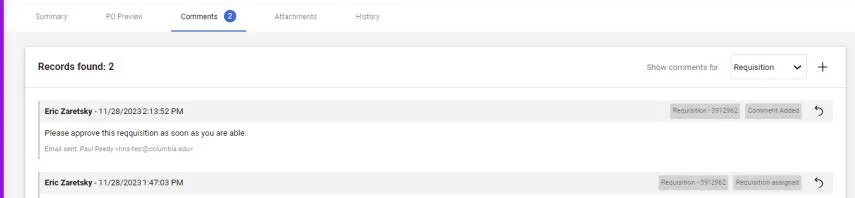
5. Click the Complete icon. Comments are indicated on the Comments tab and listed on the Comments screen.
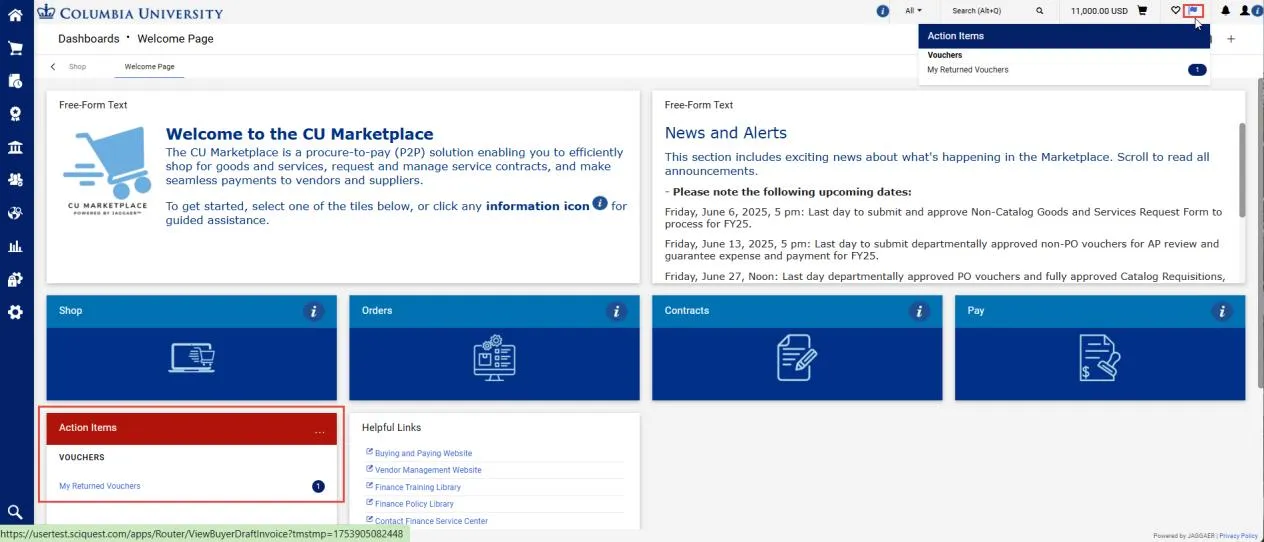
Any returned documents will be listed in the Actions Items tile on the CU Marketplace Welcome Page or from the Action Items icon in the upper right corner of the CU Marketplace screen.
Click My Returned (Requisitions or Voucher) to view and select your returned item.
If an Approver returns a Requisition or Voucher to you for more information or revisions, they will include a Comment explaining the reason for the return. You can respond directly to the Comment and also attach any requested files.
1. When viewing the document navigate to the Comments tab.
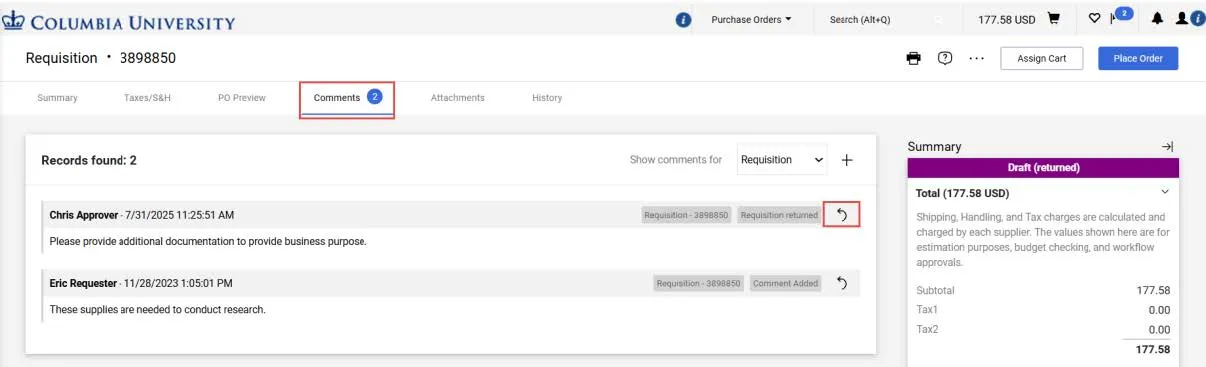
2. Click the Reply To icon next to the document returned message to respond to the Comment.
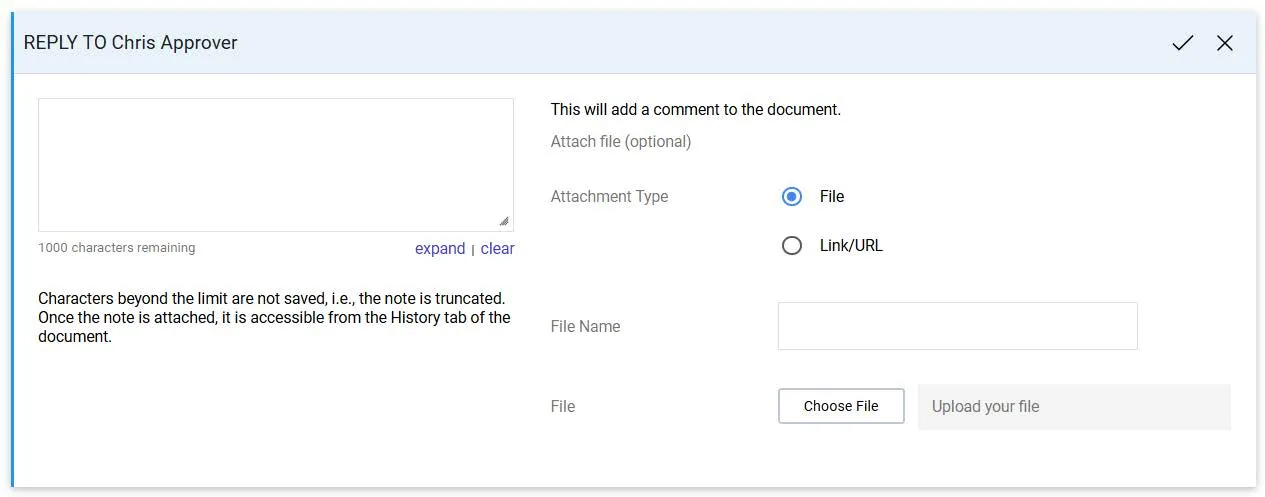
3. Type your Comment.
4. If the Approver is requesting additional documentation, you can Attach a File.
5. Click the Complete icon. Make any other revisions required by the Approver and resubmit your document.
Where do I get help?
View previous CU Marketplace Tips.
Contact the Finance Service Center.
Log an incident or request a service via Service Now.