CU Marketplace Pro Tip: How do I Edit a Requisition or Voucher Submitted for Approval?
What is it?
In order to edit Requisitions or Vouchers after they have been submitted into workflow for approval, you must first request that the Requisition or Voucher be returned to you by the Approver. For Requisitions, you also have the option to Withdraw the Entire Requisition while it is pending approval. Withdrawing will terminate the Requisition and you will need to create a new Requisition if you want to resubmit the order.
Viewing Your Requisitions or Vouchers
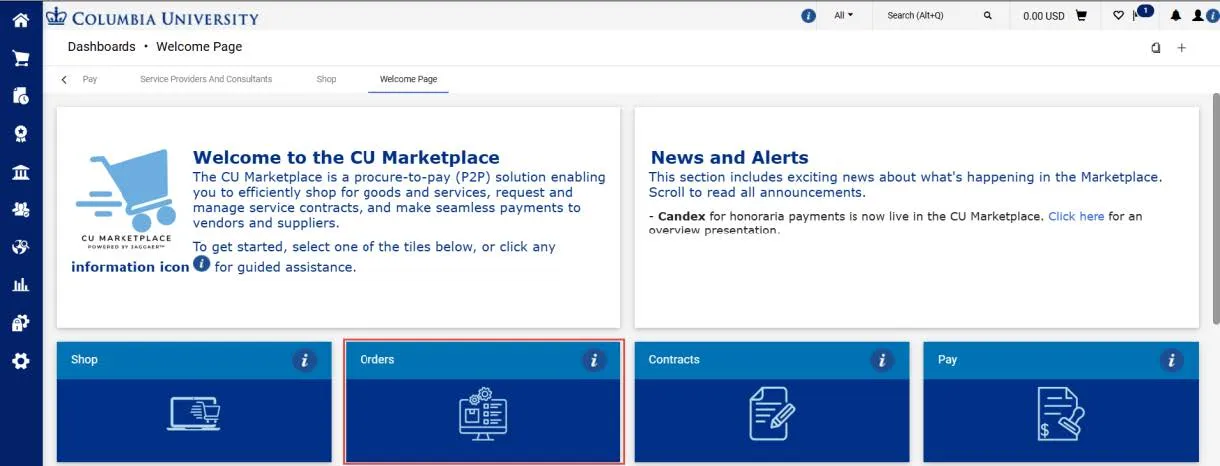
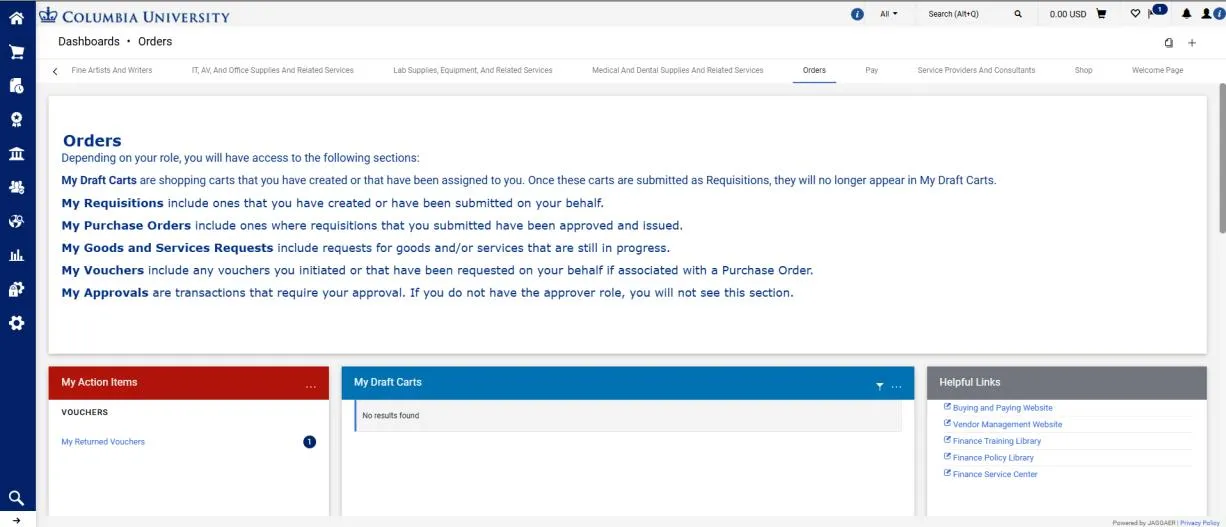
1. Click the Orders tile to navigate to the Orders dashboard.
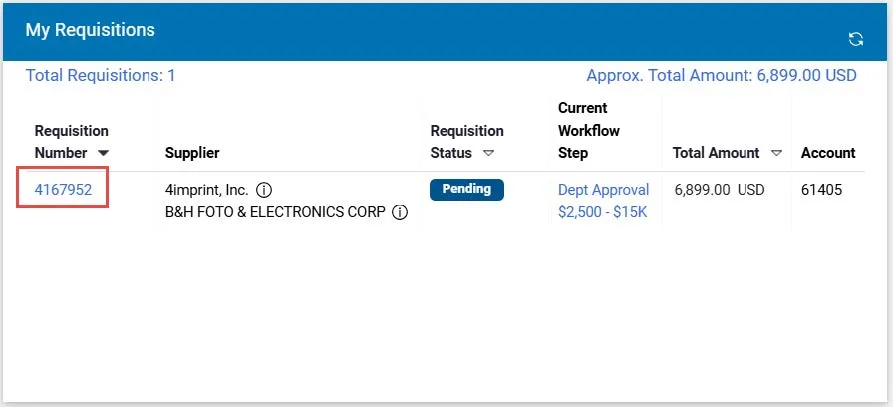
2. To access your Requisitions, scroll to the My Requisitions section and click the Requisition Number of the Requisition you want to view.
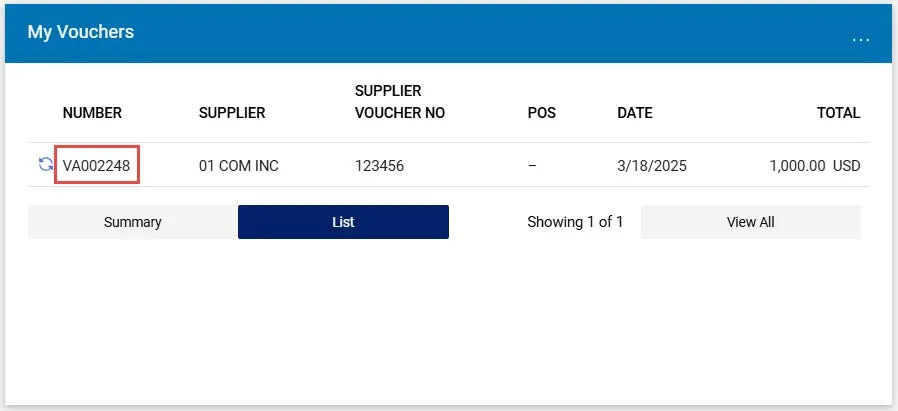
To access your Vouchers, scroll to the My Vouchers section and click the Number of the Voucher you want to view.
Adding Comments and Notifying Approvers
After you submit a Requisition or Voucher into workflow for approval, you can add a Comment that can be emailed to selected Approvers in order to request the document be returned to you for editing. You can also use Comments to remind Approvers that your Requisition or Voucher is awaiting review and approval.
From within a Requisition or Voucher document:
1. Click the Comments tab.
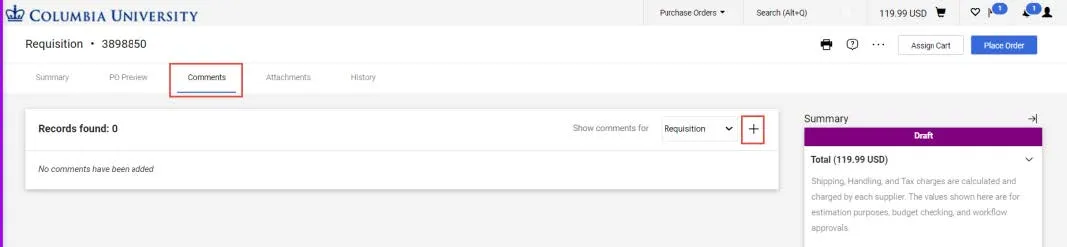
2. Click the New Comments icon. The Add Comment screen appears.
3. Type your Comment. Optionally, you can attach a file or add a link/URL.
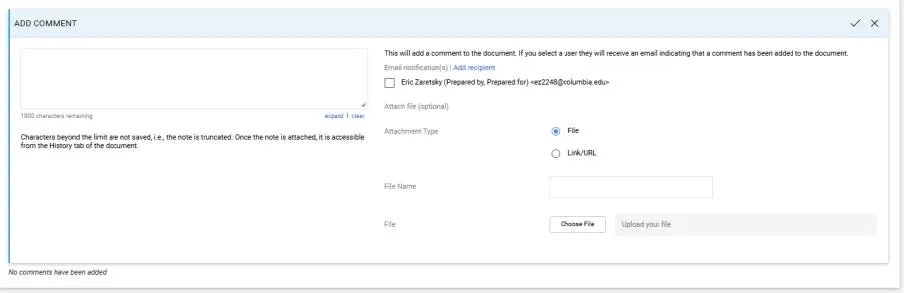
You can select the individuals listed who have worked with your document to receive your Comment as an Email Notification, or, click Add recipients to search for Approvers or other individuals you wish to send your Comment to.
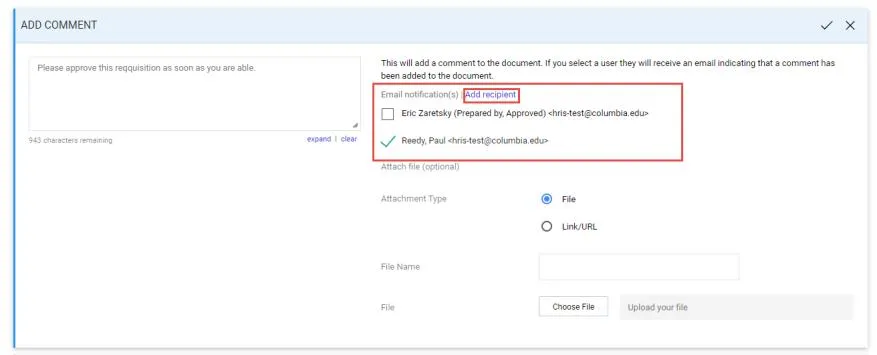
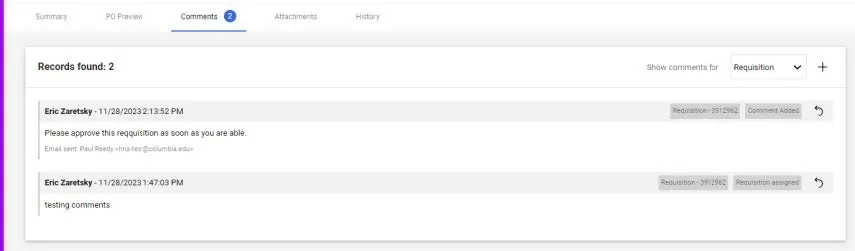
4. Click the Complete icon. Comments are indicated on the Comments tab and listed on the Comments screen.
Withdrawing a Requisition from Approval Workflow
You can withdraw a Requisition that is still pending approval. Withdrawing will terminate the Requisition and you will not be able to edit or resubmit it. If you need to resubmit, create and submit a new Requisition. To avoid withdrawing and creating a new Requisition, ask your Approver to return your Requisition following the steps above, then edit and resubmit it.
Vouchers cannot be withdrawn. Follow the steps above to ask your Approvers to return the Voucher.
1. View the Requisition that you wish to withdraw.
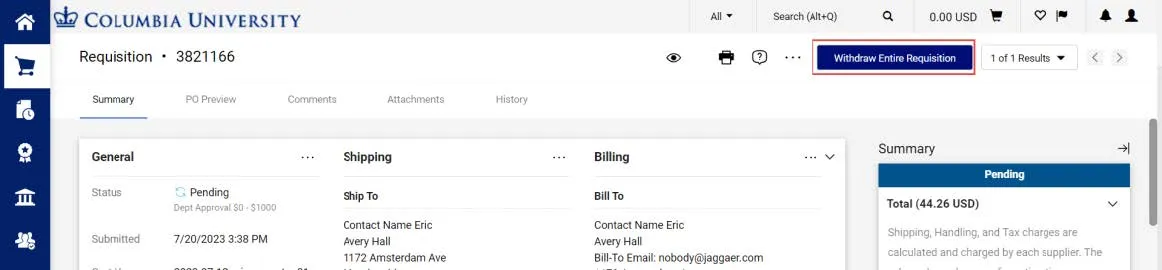
2. Click the Withdraw Entire Requisition button. The Withdraw Entire Requisition window appears.
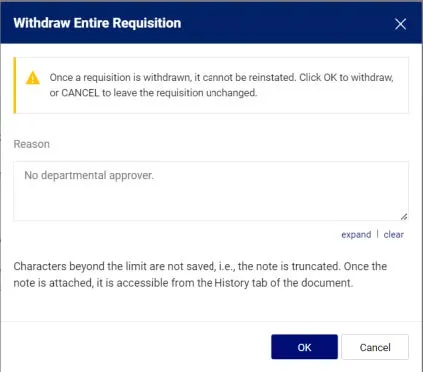
3. Type a Reason for withdrawing the Requisition and click OK.