CU Marketplace Tip: How do I use Filters in my Searches to view documents?
What is it?
The CU Marketplace provides powerful search functionality with results that can be filtered and refined. After you view a Search List, you can use the Quick Filters section on the left or the filters above the list to narrow the list to those documents that contain specific attributes.
For more in-depth details about searches and reports, refer to the Reporting in the CU Marketplace Training Guide.
Viewing Search Lists
Click the Orders icon, then Search menu, then select the type of document you wish to view. The Search screen appears for the type of document you selected.
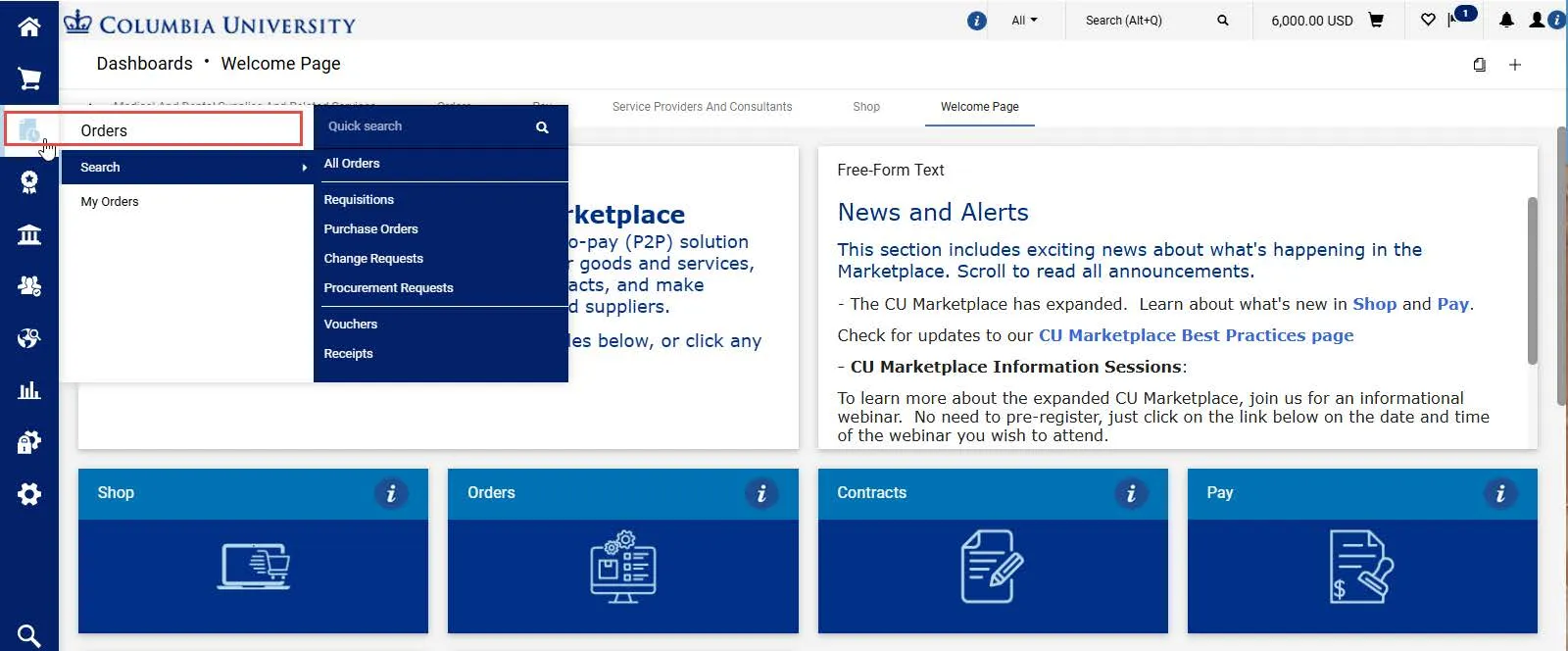
Filtering Search Lists
Using Quick Filters
You can use the Quick Filters section on the left or the filters above the list to narrow the list to those documents that contain specific attributes.
1. Click the Show Side Panel icon to view the Quick Filters panel.
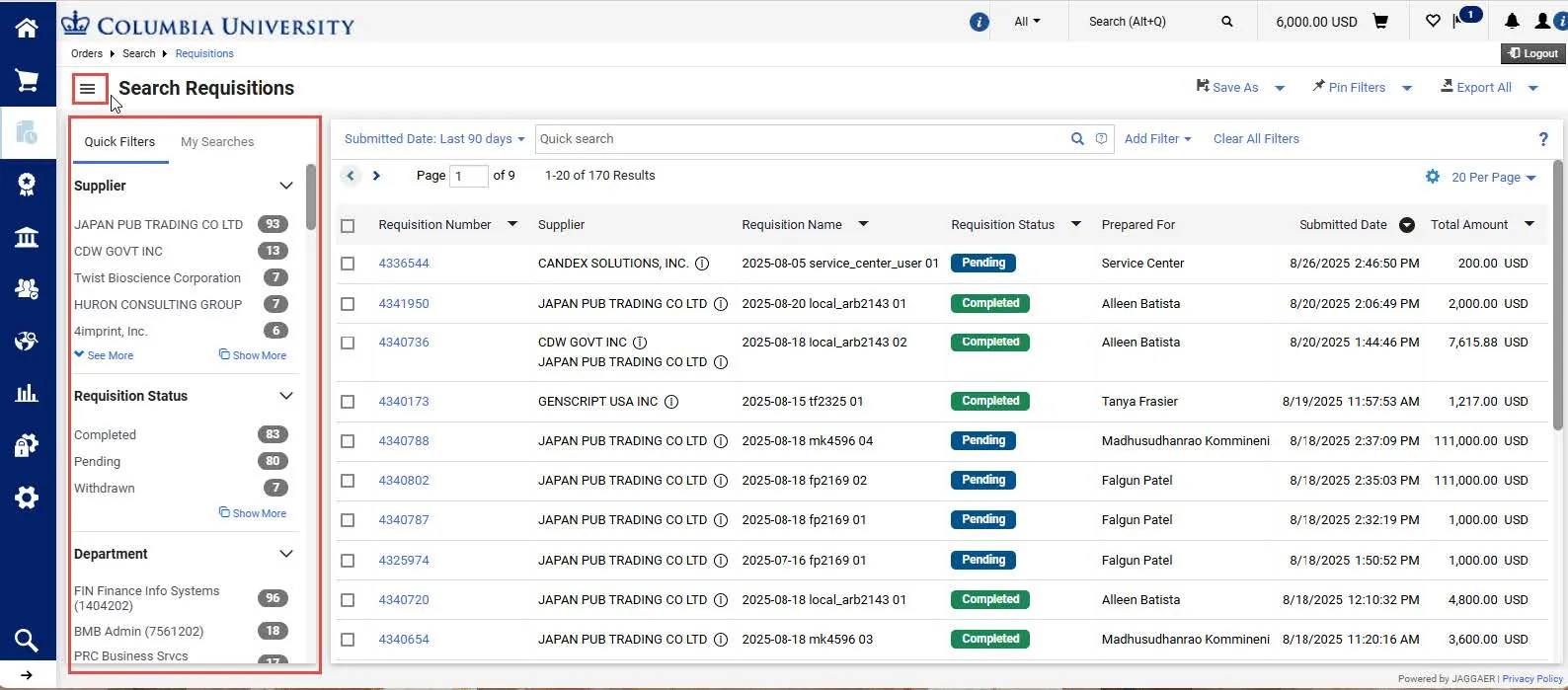
2. Select the Filter from the panel to narrow the list to those documents that contain specific attributes. Each selected Filter appears above the list.
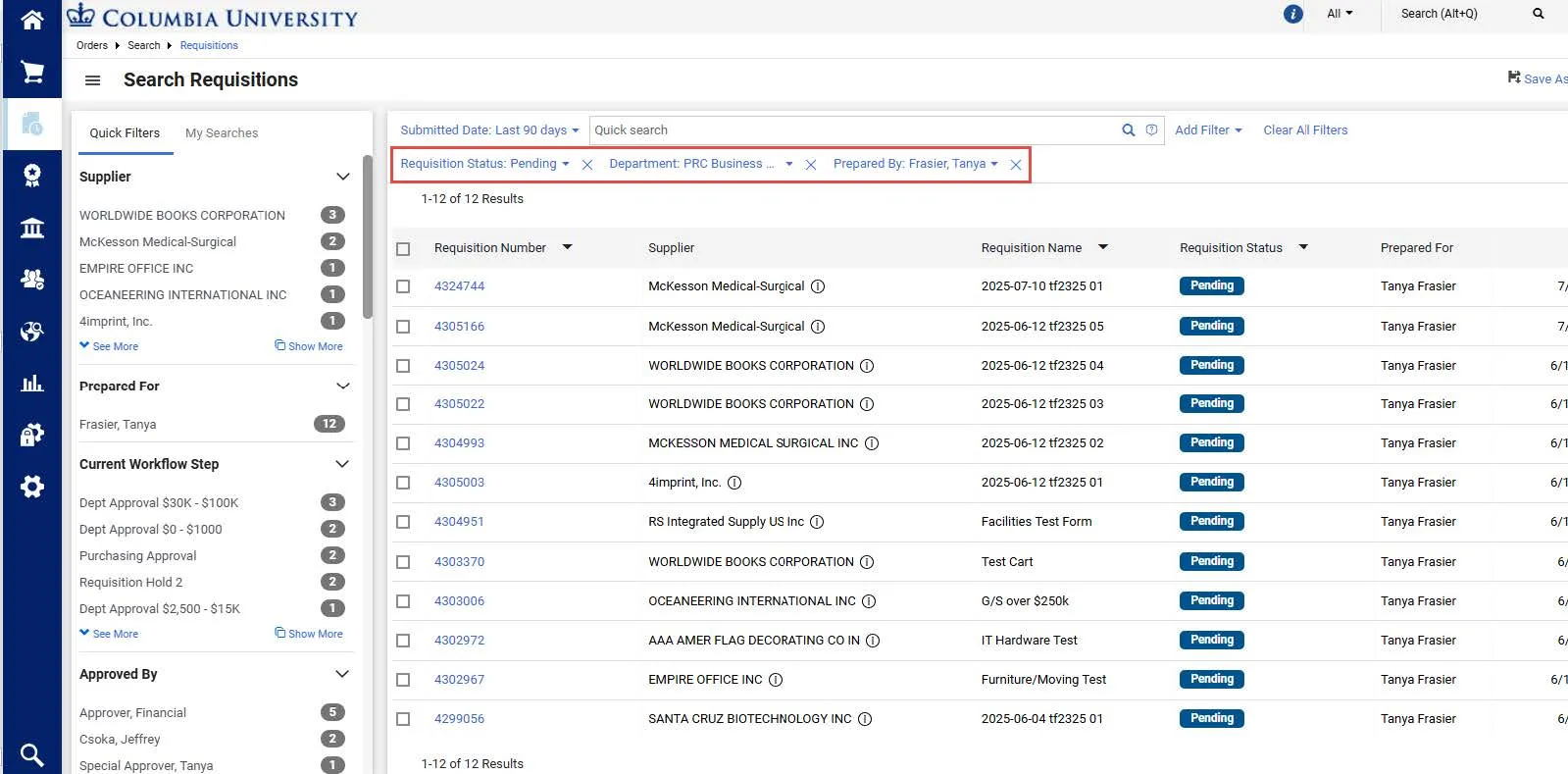
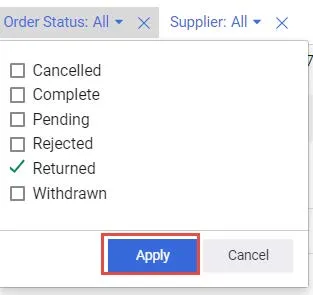
3. Click the dropdown arrow next each Filter to select or change the Filter values and click Apply.
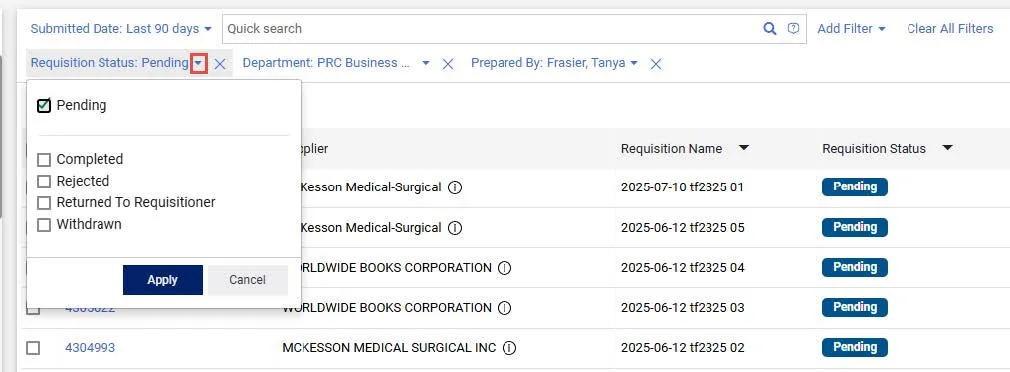
Click the Remove icon for Filters that you want to remove from the list.
Adding Filters to Search Lists
1. Click the Add Filter button and select Search Filters to add to the top of your list that you can use to find specific documents.
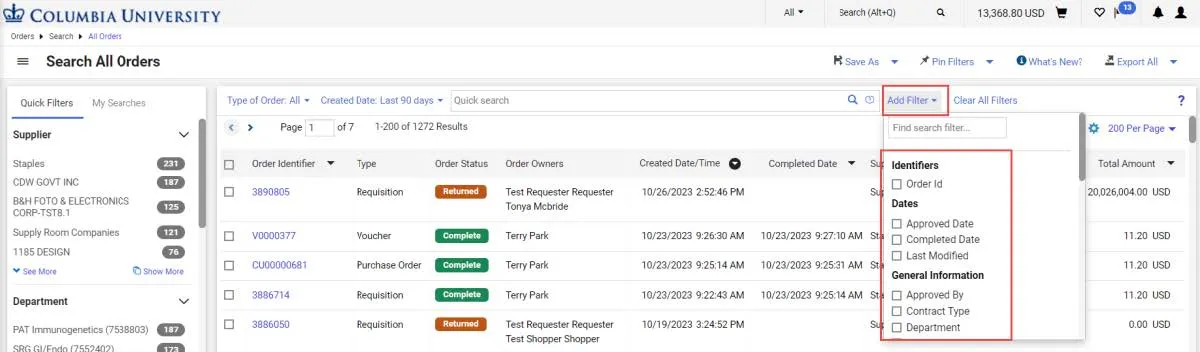
The Filter(s) you added appear above the list column headers.
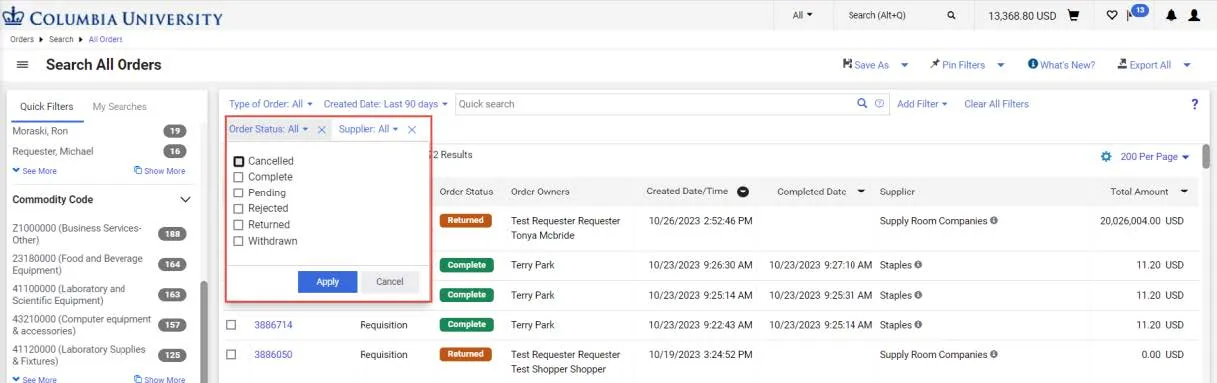
2. Enter or select the desired values in the Filters you added and click Apply for each filter.
The list will be filtered based on your desired values.
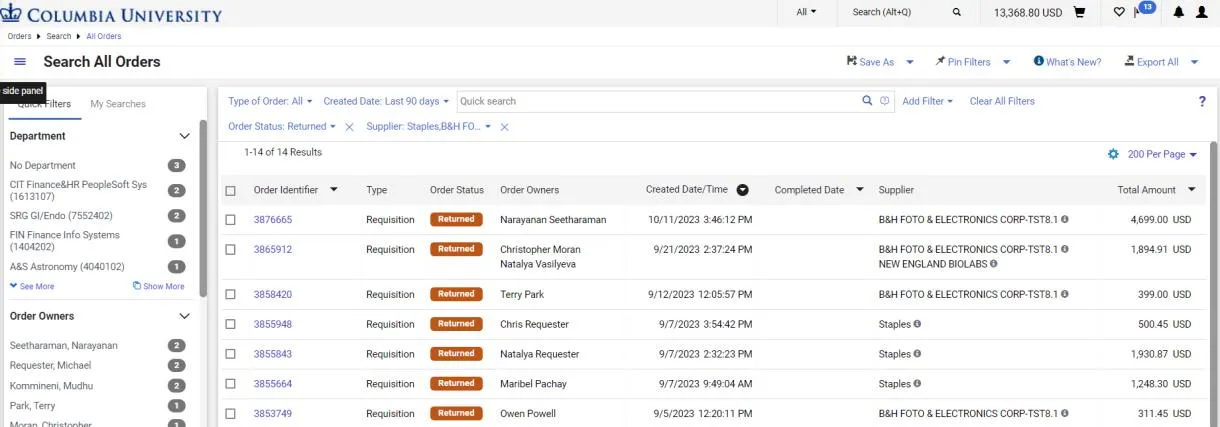
Click the Remove icon for Filters that you want to remove from the list.
Pinning Filters
After you select Filters and Pin them, that layout becomes the default for the Search page for that Order type each time you return.
1. Click the Pin Filters button.

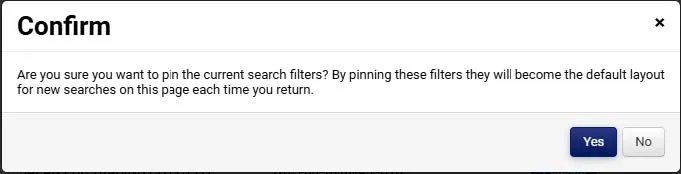
2. Click Yes to confirm.
Where do I get help?
View previous CU Marketplace Tips as well as the CU Marketplace Tips and Best Practices webpage.
Contact the Finance Service Center.
Log an incident or request a service via ServiceNow.