CU Marketplace Pro Tip: Add Your Goods and Services Request Items to a New Cart
What is it?
Before creating a Requisition from a Goods and Services Request Form, check to see if have you any Active Draft Carts. If you have an Active Draft Cart, any Lines from your Goods and Services Request will get added to your Active Draft Cart.
Process, submit, or delete any Draft Carts so that new Requisition lines do not get added to the Active Draft Cart. Or, if you cannot submit or delete your Active Draft Cart, you can add your Goods and Services items to a new Cart. Refer to the Shopping from Catalog Suppliers in the CU Marketplace for details on how to manage Carts.
Viewing Your Carts
If you have an Active Cart, the total amount for all items in that Cart is displayed next to the Shopping Cart icon in the top right of the CU Marketplace window.
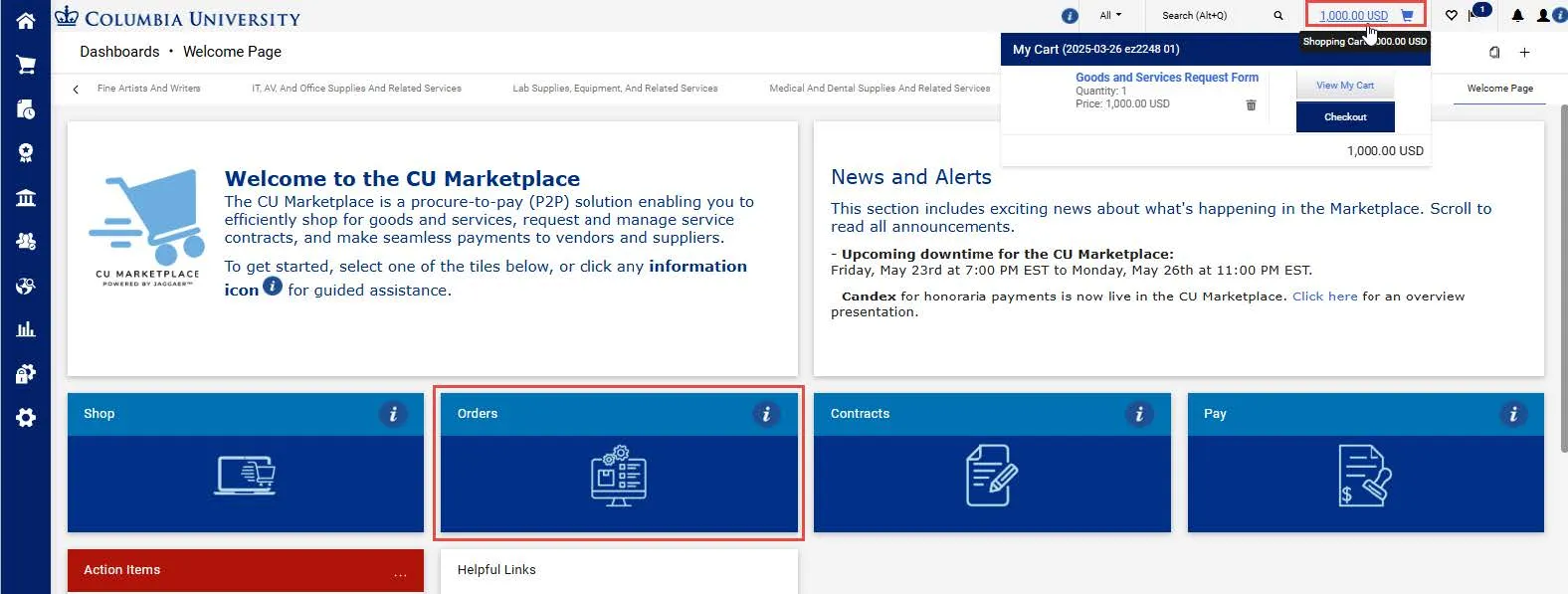
Click the Amount link next to the Shopping Cart icon to View My Cart or proceed to Checkout.
To view all Draft Carts, click the Orders tile from the Welcome Page. The Orders dashboard appears.
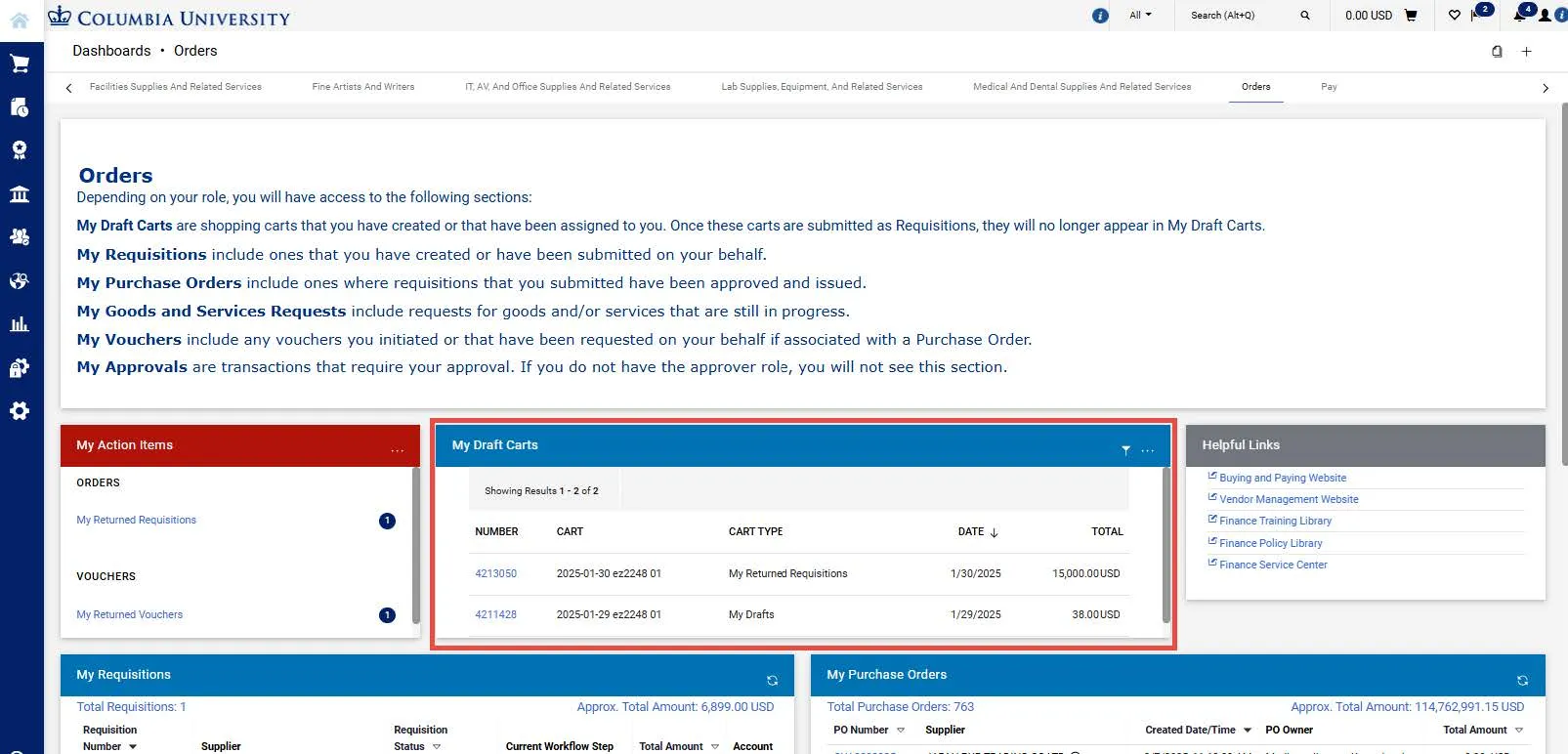
The My Draft Carts section displays your Carts. The Active icon indicates the Cart that is currently active.
Click a Cart Number to view a Cart. That Cart will become your Active Cart.
Adding Goods and Services Request Items to a New Cart
After completing a Goods and Services Request Form, you can select the option to Add to new Cart so your items are not added to the Active Cart.
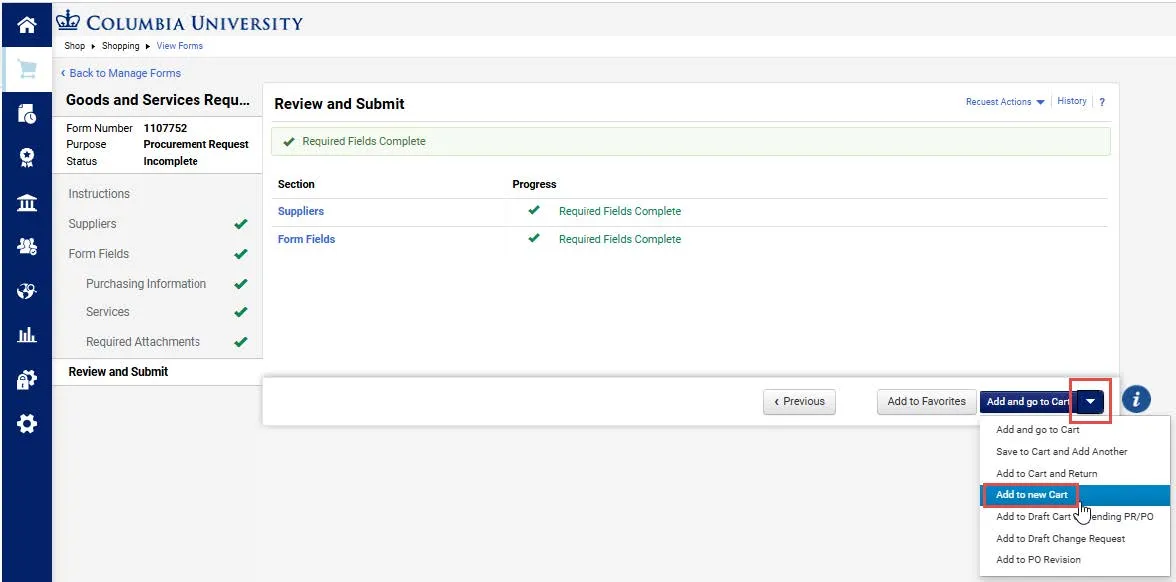
On the Review and Submit page of your Goods and Services Request Form, click the dropdown menu next to Add and go to Cart and select Add to new Cart.