CU Marketplace Pro Tip: The Contract Request Process
What is it?
Submit a Contract Request when a contract is needed. This may include contracts required to issue a Purchase Order, hire an individual or entity for consulting services, or support onsite or offsite events.
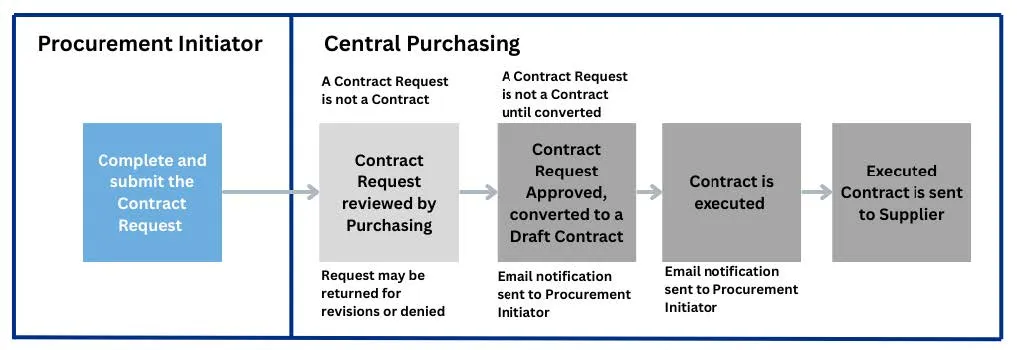
Important: Approval of a Contract Request does not mean a contract has been created. The contract creation process begins only after the Purchasing team approves the request.
To learn more, visit the Submit a Contract Request website.
Contract where No Purchase Order is Required
The graphic below illustrates the Contract Request to Contract Execution process where a Purchase Order is not required.
This includes:
- Onsite and offsite events and catering
- Services such as fine artists and writers
- Contract types that may not include a payment (e.g., non-disclosure agreements, power of attorney)
1. Navigate to the Contracts dashboard to begin your request.
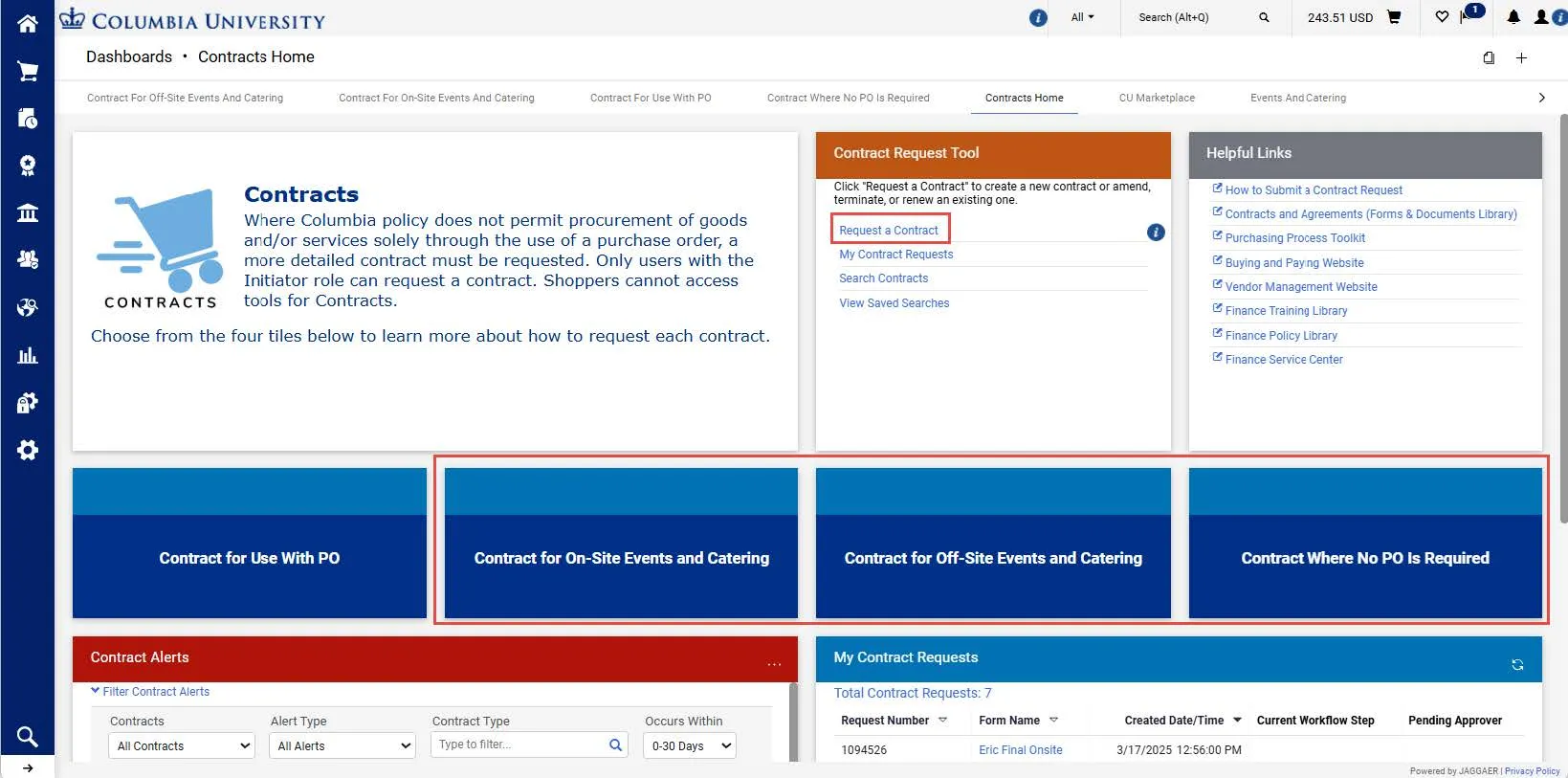
If you are unsure about the type of contract you are requesting, select the appropriate tile for more information.
2. Click the Request a Contract link to open the Contract Request form. Refer to the Requesting a Contract job aid for more details
Contract for Use with a Purchase Order (PO)
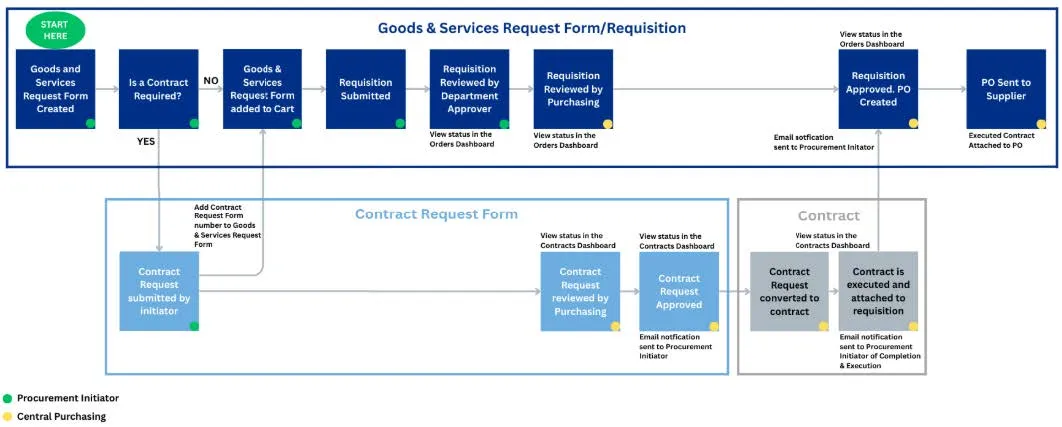
The graphic below illustrates the process when a Purchase Order is required. Contracts for Use with a PO must start with a Goods and Services Request. All major service provider and consultant agreements fall under this category.
1. From any of the Shop dashboards, initiate a Goods and Services Request.
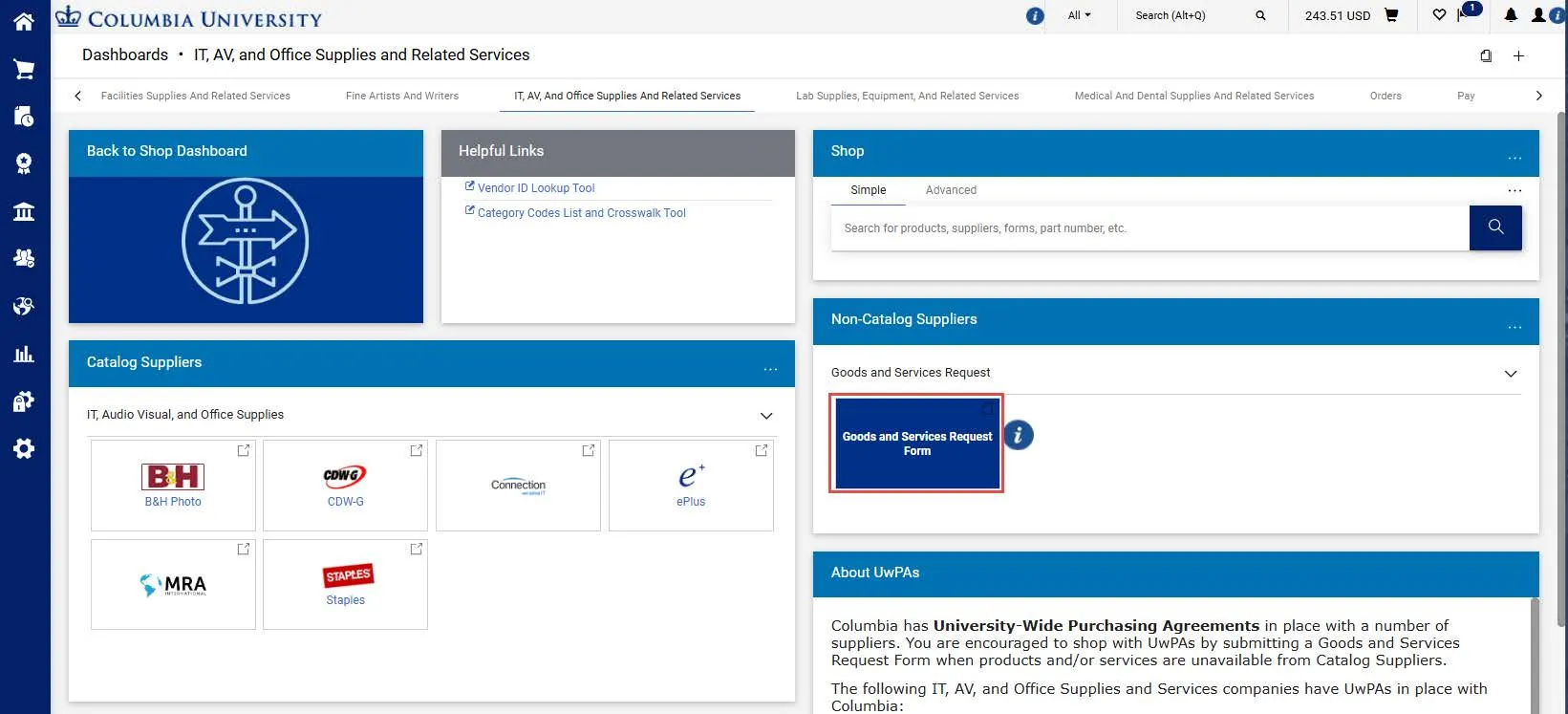
2. Complete all the required fields in the Goods and Services Request Form.
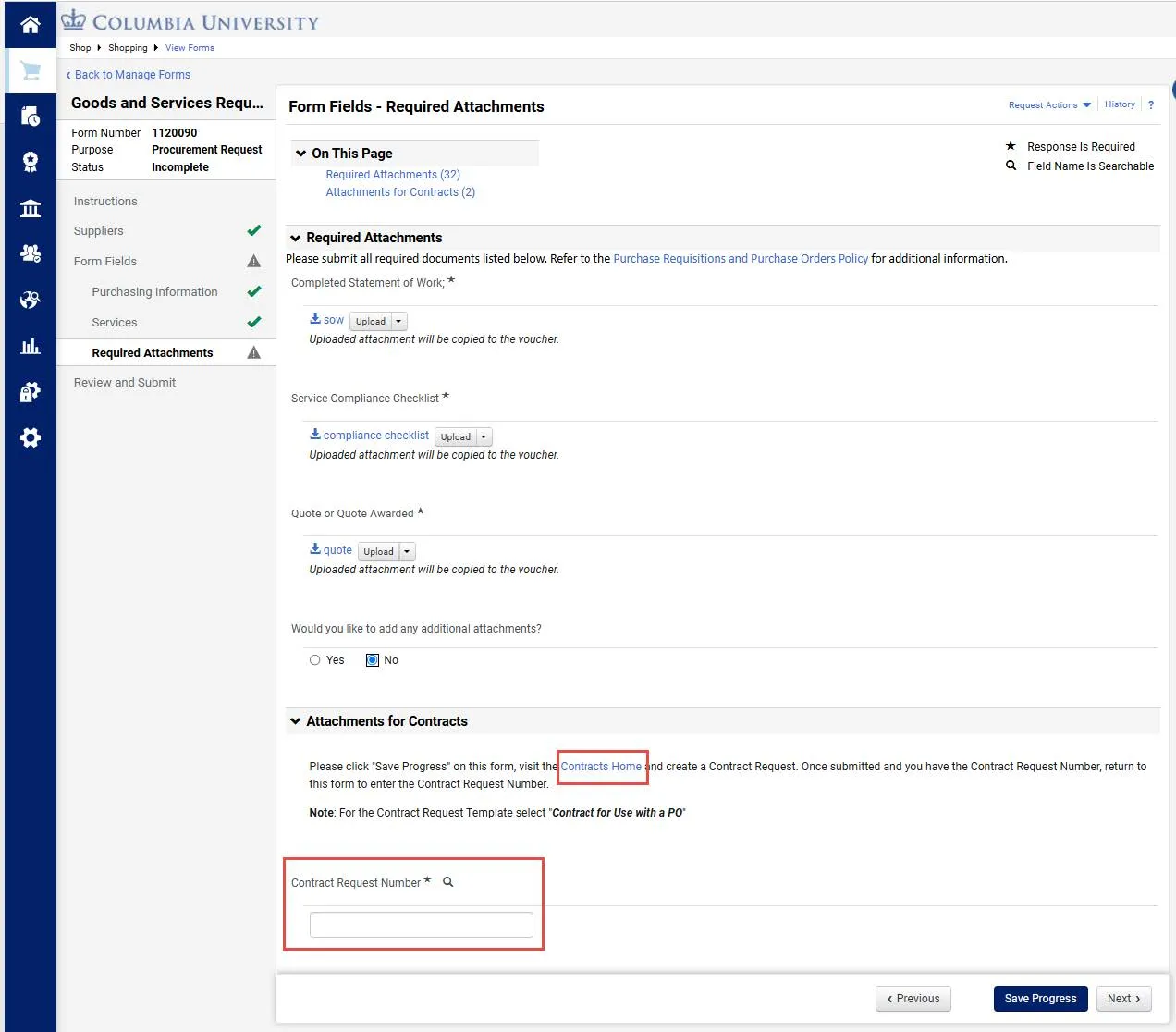
If a Contract Request is required, the Contract Request Number field appears on the Attachments page.
3. Click the Contracts Home link and the Contracts dashboard opens in a new web browser tab.
4. Initiate and complete a Contract Request. Copy the Form Number from the upper left corner of the Contract Request form and click Complete Request.
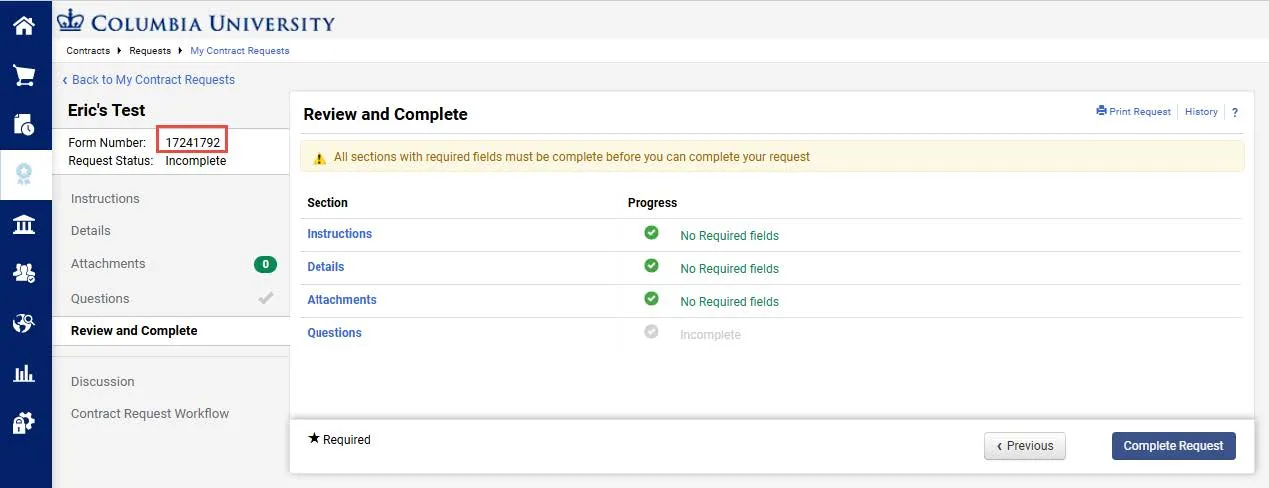
5. Return to the Goods and Services Request Form, which is still open in the prior web browser tab, and paste the Form Number into the Contract Request Number field.
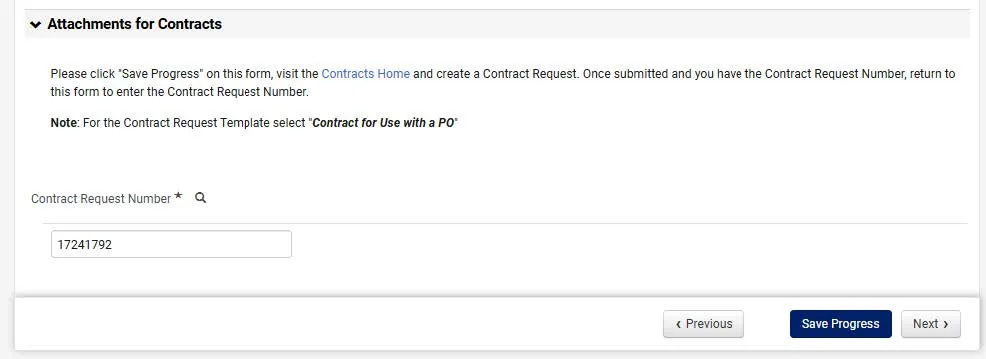
6. Click Next and submit the Goods and Service Request as a Requisition.