CU Marketplace Pro Tip: How do I access my In-Progress Goods & Services Requests, Carts, Requisitions and Vouchers?
To access any in-progress CU Marketplace documents such as draft Goods and Services Requests, Carts, Requisitions, or Vouchers, use the Orders dashboard. From there, you can open the desired document to continue editing and submit it into approval workflow.
Viewing the Orders Dashboard
1. From the CU Marketplace Welcome page, click the Orders tile
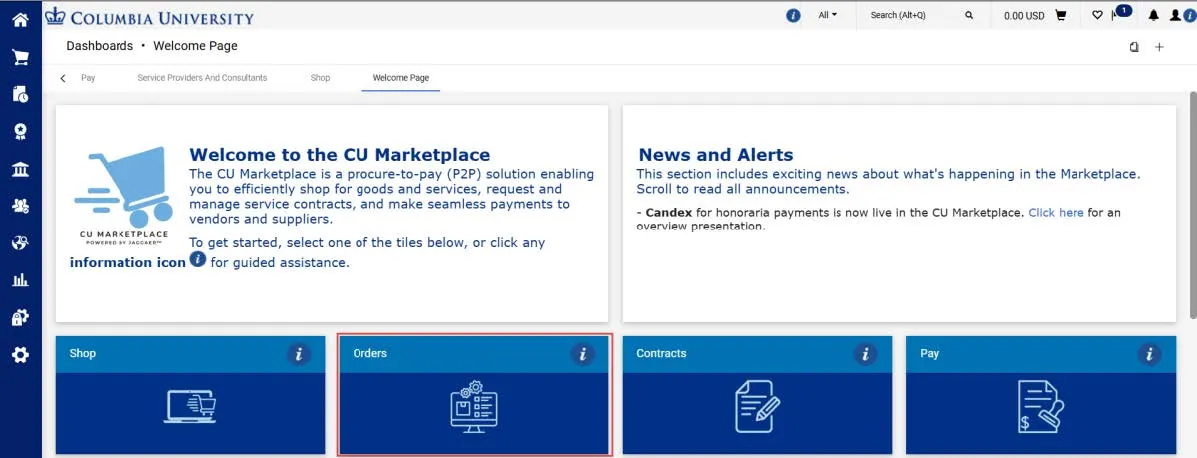
The Orders dashboard appears.
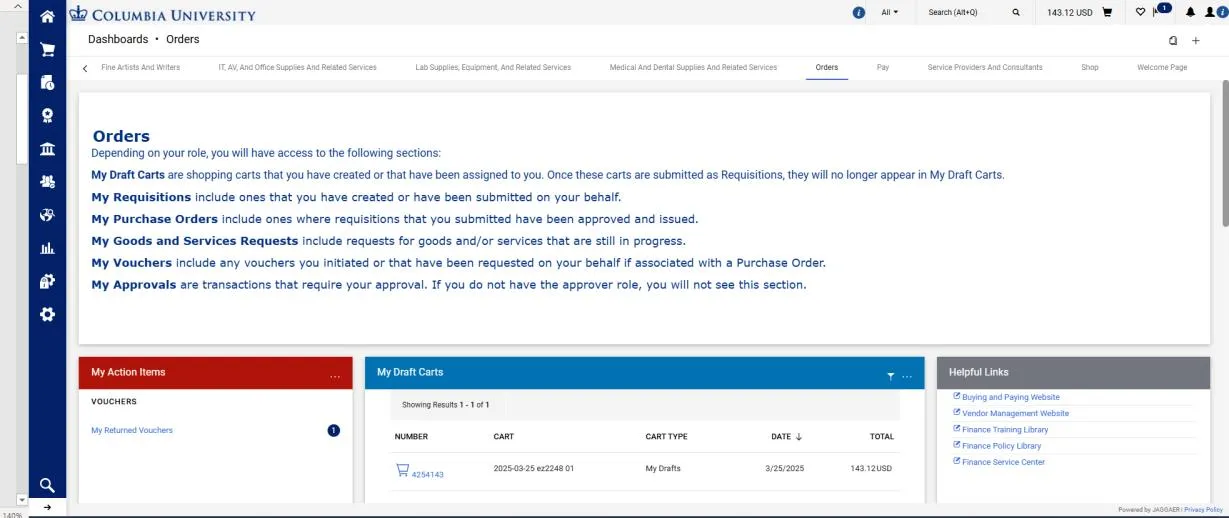
The Description panel outlines all the sections available on the page.
2. Scroll down to view the different sections in the Orders dashboard.
My Non-Catalog Goods and Services Requests
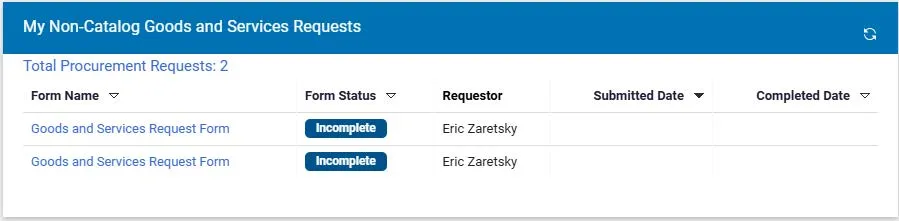
My Non-Catalog Goods and Services Requests include requests for goods and/or services that are still in progress. If you selected to Save Progress when completing your Goods and Services Request Form (e.g, in order to gather required attachments), you can return to your form from here.
Click the Form Name to reopen and complete your Goods and Services Request Form.
My Draft Carts
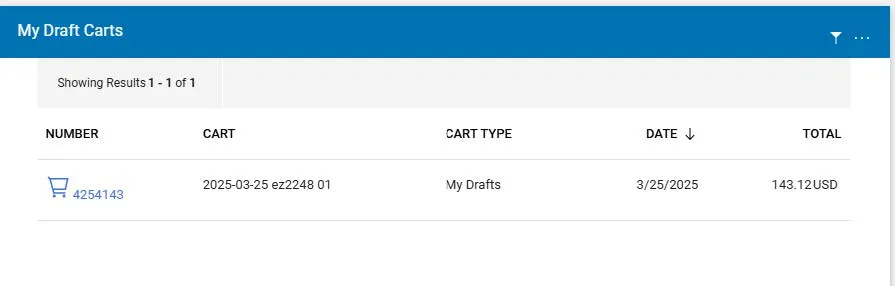
My Draft Carts are Shopping Carts that you have created or that have been assigned to you but that have not yet been submitted into workflow as a Requisition.
Click the Number of the Draft Cart to continue shopping or to submit the Cart as a Requisition.
My Requisitions
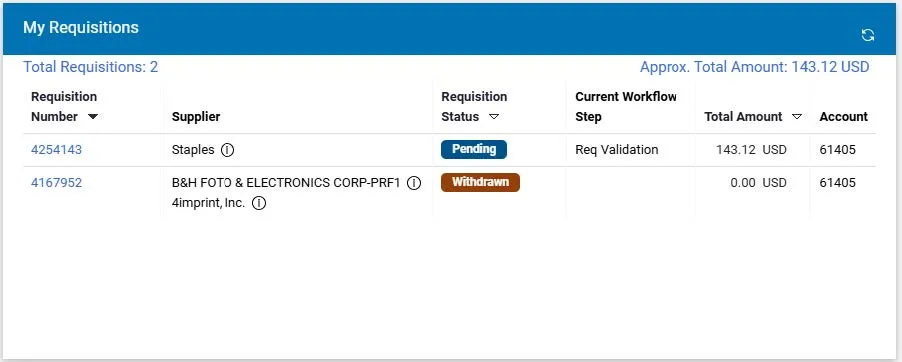
My Requisitions include those Requisitions you have submitted into approval workflow or that have been submitted on your behalf. You can access your Requisition to view the approval status, add Comments to request that the Requisition be returned by the Approver for editing, or withdraw the Requisition to terminate it. Refer to the CU Marketplace Pro Tip How do I Edit a Requisition or Voucher Submitted for Approval? for more details.
Click the Requisition Number to open the Requisition.
My Vouchers
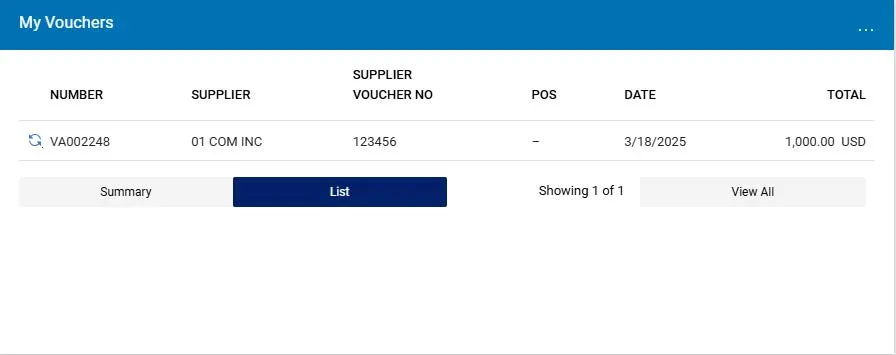
My Vouchers include any PO or Non-PO Vouchers you submitted or that have been submitted on your behalf if associated with a Purchase Order. You can access the Voucher to view the approval status or add Comments to request that the Voucher be returned to you by the Approver for editing. Refer to the CU Marketplace Pilot Pro Tip How do I Edit a Requisition or Voucher Submitted for Approval? for more details.
Click the Number of the Voucher to open it.
Draft Vouchers
Draft Vouchers are Vouchers that are still in-progress. Draft Vouchers are not available on the Orders dashboard. Instead, navigate to View Draft Vouchers from the left side Navigation Menu.
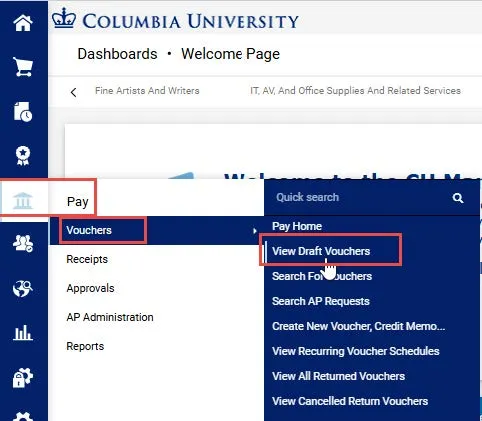
1. Click the Pay icon from the left side Navigation Menu and select Vouchers and View Draft Vouchers.
The Vouchers screen displays My Drafts.
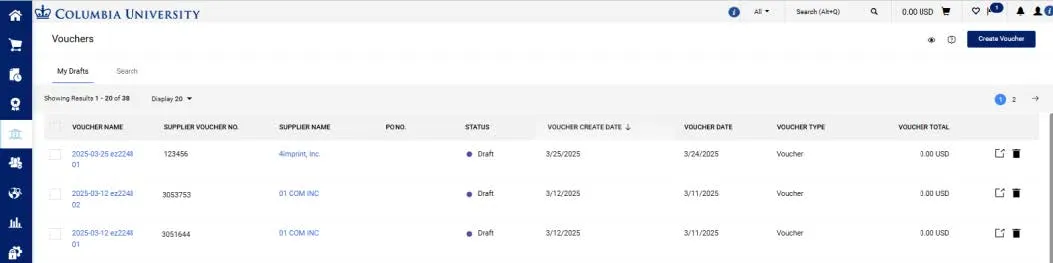
2. Click the Voucher Name to open the Draft Voucher.