CU Marketplace Pro Tip: How do I create Profile Defaults?
What is it?
When creating Requisitions or Vouchers in the CU Marketplace, Initiators must ensure the Accounting Code (ChartString) is complete and accurate before submitting for approval. Requisitions also require Ship To and Bill To addresses.
To streamline your entries, set up favorite and default ChartField values in your CU Marketplace Profile, one set for Requisitions and another for Vouchers. Additionally, you can save default Ship To and Bill To addresses for Requisitions.
Refer to the Modifying Profile Settings in the CU Marketplace job aid for more details.
Viewing Instructions Directly in the CU Marketplace
A guide is available in the CU Marketplace to walk you through the steps of setting up your Profile defaults. Click the information icon next to the Profile icon to launch the guide.
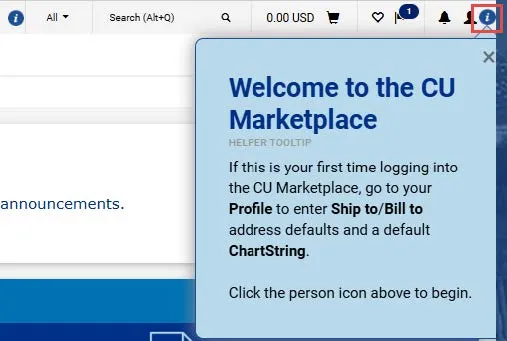
Setting Accounting Code (ChartString) Favorites and Defaults
1. Click the Profile icon in the upper right corner of the CU Marketplace screen.
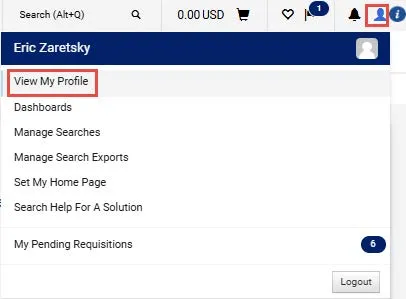
2. Click View My Profile.
3. Click Default User Settings.
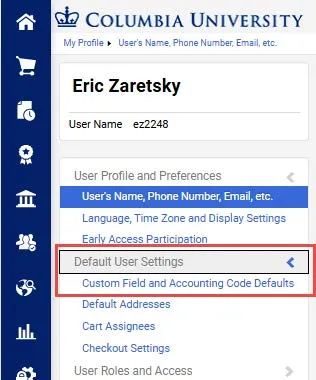
4. Under Default User Settings, click Custom Field and Accounting Code Defaults.
In the Code Favorites tab, there are two sections for adding favorites. The top section is for Requisitions. The bottom section is for Vouchers.
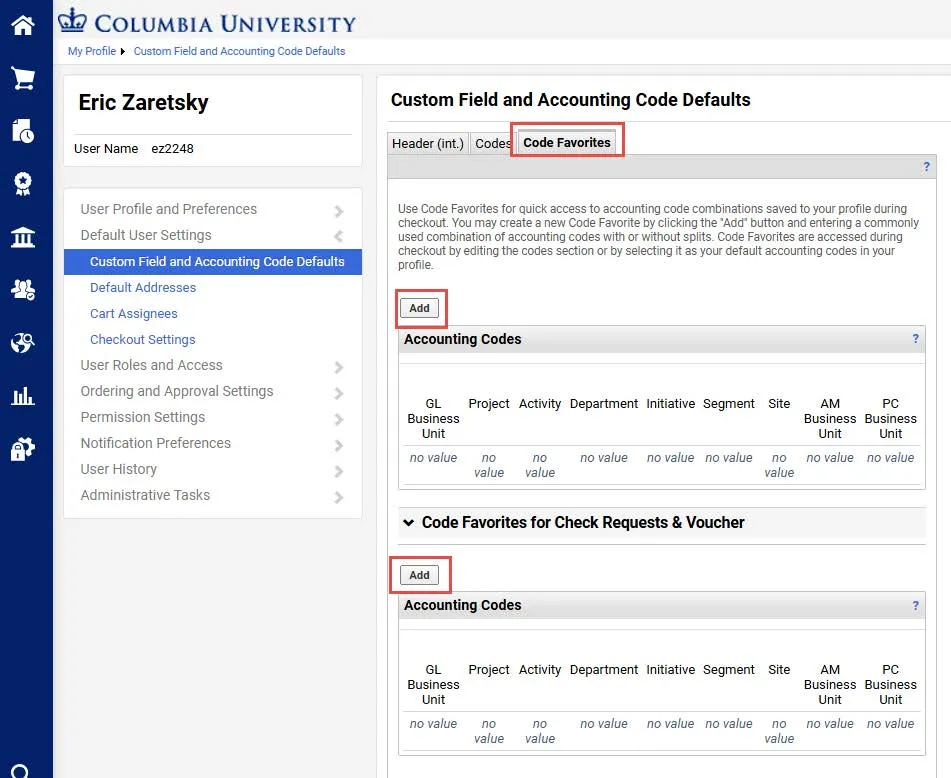
5. Click the Add button. The Accounting Codes window appears.

6. Enter a Nickname for the ChartString so that you can easily identify it. Click the Default checkbox to make this your default ChartString.
7. Enter the ChartField values. They must be entered in order left to right as the available values are dependent on the value in the previous field. You can leave fields blank in your Favorites. When you submit Requisitions and Vouchers, you must populate any blank ChartFields. Click the Select from all values link to use the Custom Field Search for a field you are populating.
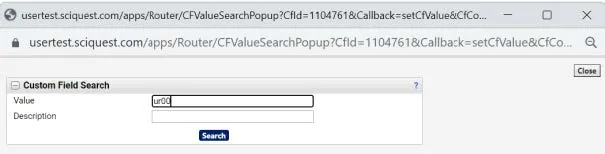
8. Click the Save button. Click Add again to complete the details for additional ChartString favorites. Note: Remember to add favorites in both the Requisition and Voucher sections, if needed, as they are not automatically available in both places.
Setting Default Ship To and Bill To Addresses
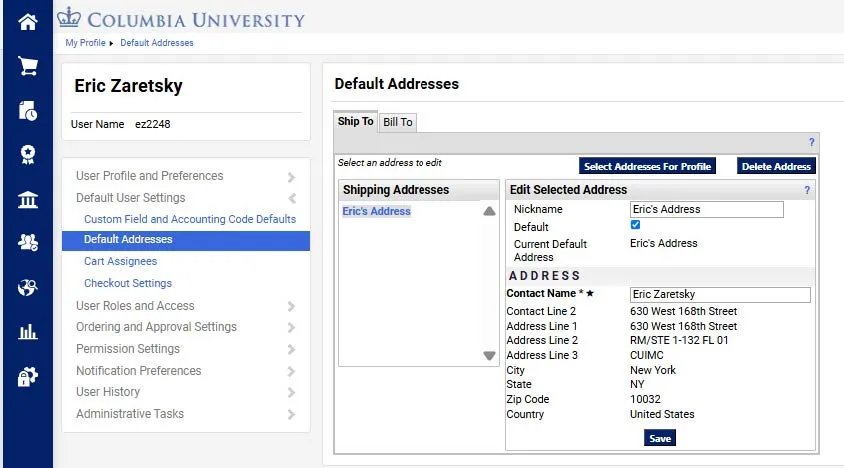
1. Under Default User Settings, click Default Addresses.
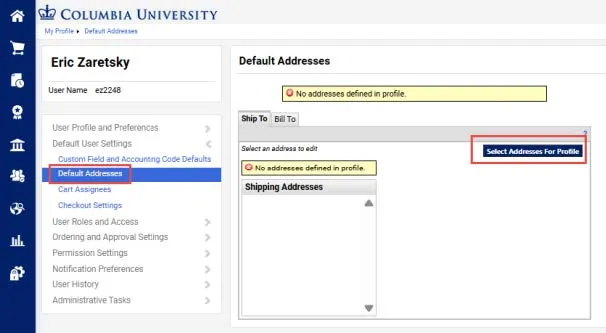
2. Select either the Ship To or Bill To tab to set the default for the desired address type.
3. Click the Select Addresses for Profile button. The Select Address Template dropdown appears.
4. Enter an address Nickname / Address to search for a matching address and click Search. A list of matches appears.
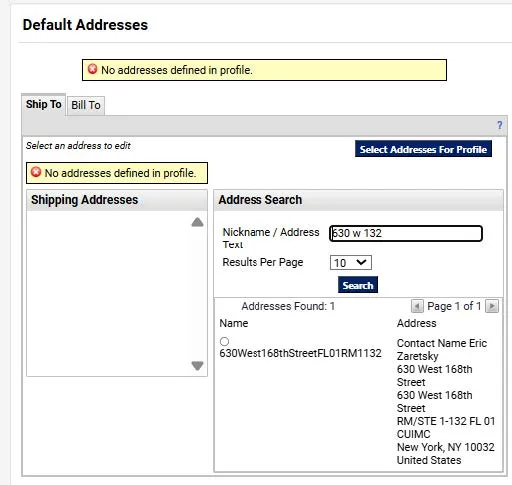
5. Select the desired matching address.
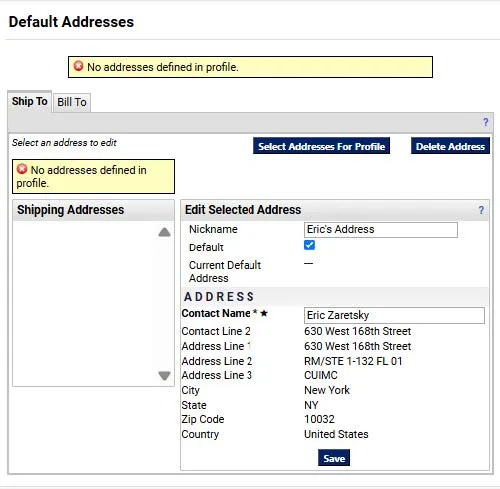
You can enter a Nickname, select if this address will be your Default, or change the Contact Name.
6. Click Save. The address will appear in the Addresses list.
Click the Select Addresses for Profile button again within the Ship To or Bill To tabs to add additional addresses. Click an address from the Addresses list to edit the settings or delete it.