CU Marketplace Pro Tip: How do I edit Goods and Services Request Details and Lines from a Cart or Requisition?
What is it?
After completing the Goods and Services Request Form and proceeding to your Cart or to the Requisition at Checkout, you must return to the Goods and Services Request Form in order to make edits to the Request details and Lines.
Refer to the Editing Non-Catalog Carts and Requisitions in the CU Marketplace job aid to learn more about editing Requisitions for Non-Catalog goods or services.
Editing Request Details and Lines from a Cart or Requisition
From the Cart
1. From the Cart page, click either the Goods and Services Request Form link or Procurement Request: Goods and Services Request Form link.
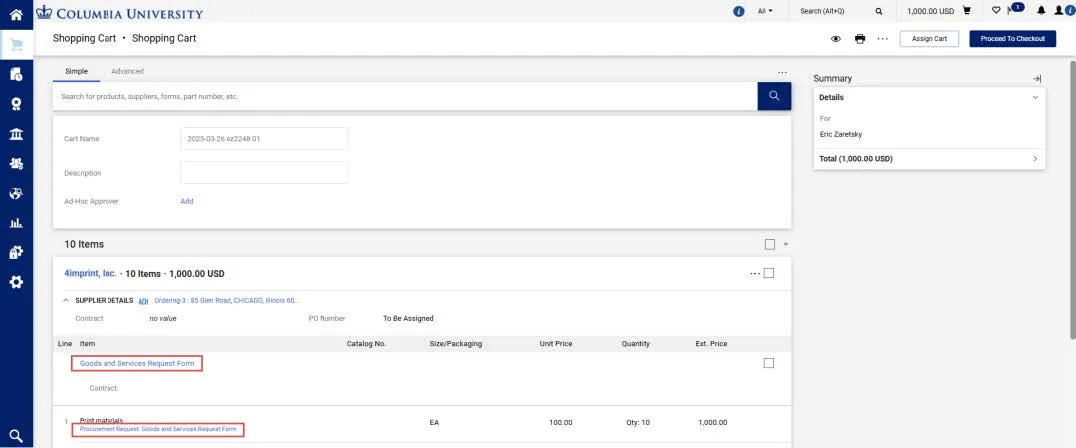
The Goods and Services Request Form appears.
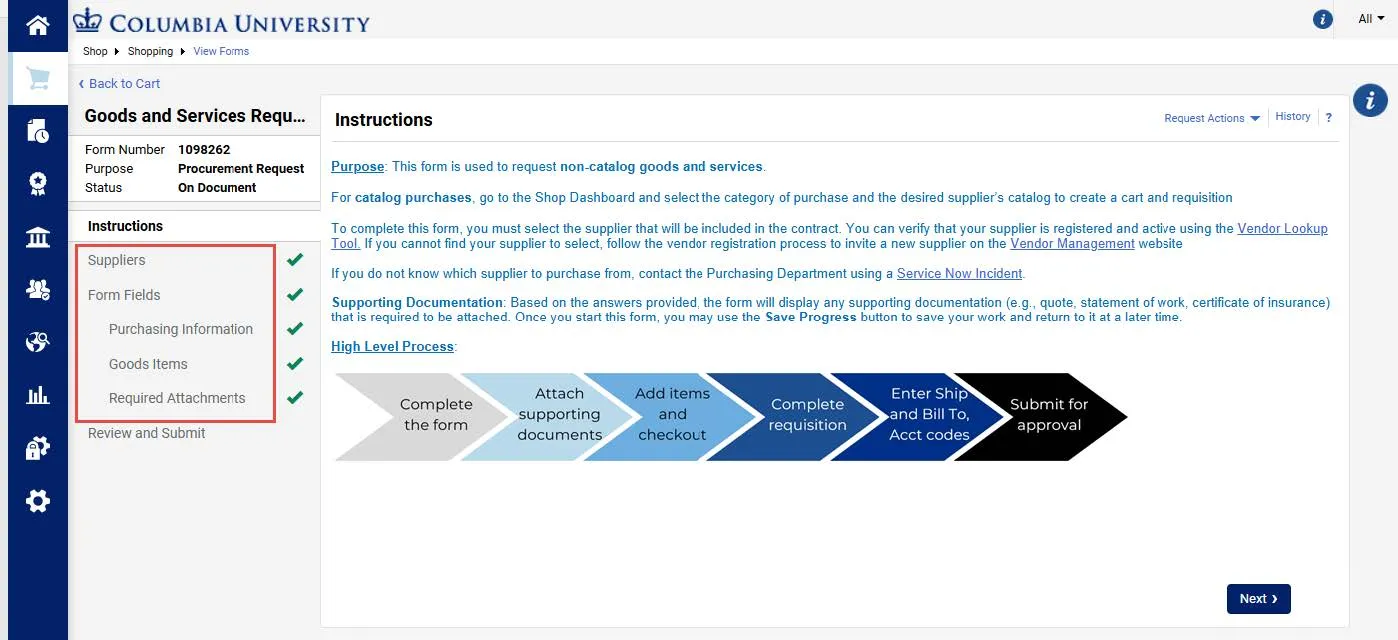
2. Use the left side Navigation panel to locate and edit the relevant section.
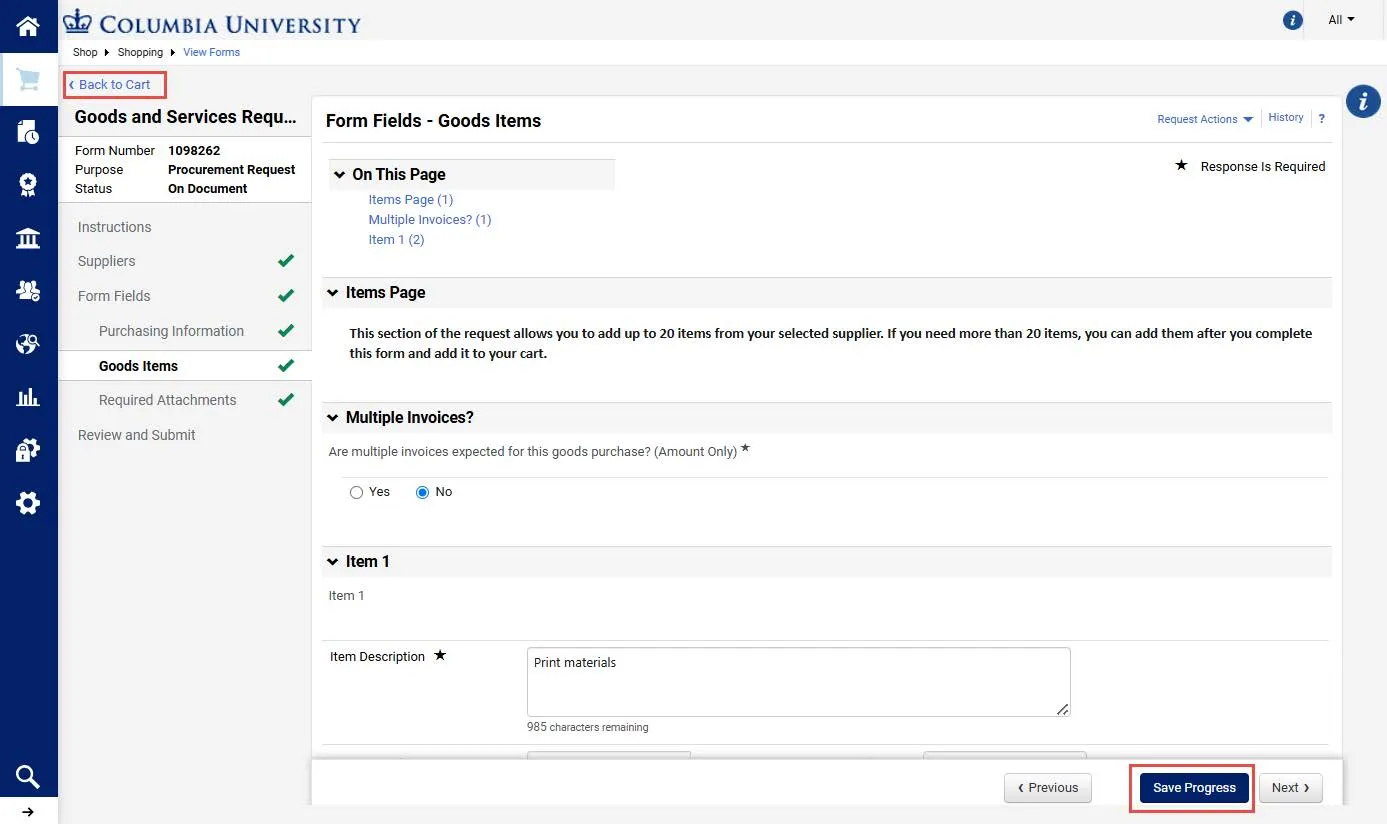
3. Click the Save Progress button to save your edits.
4. Click the Back to Cart link in the upper left to return to your Cart. DO NOT click the Add and go to Cart button on the Review and Submit page or else the items in the form will be duplicated in your cart.
From the Requisition at Checkout
1. On the Requisition page, click the Goods and Services Request Form link.
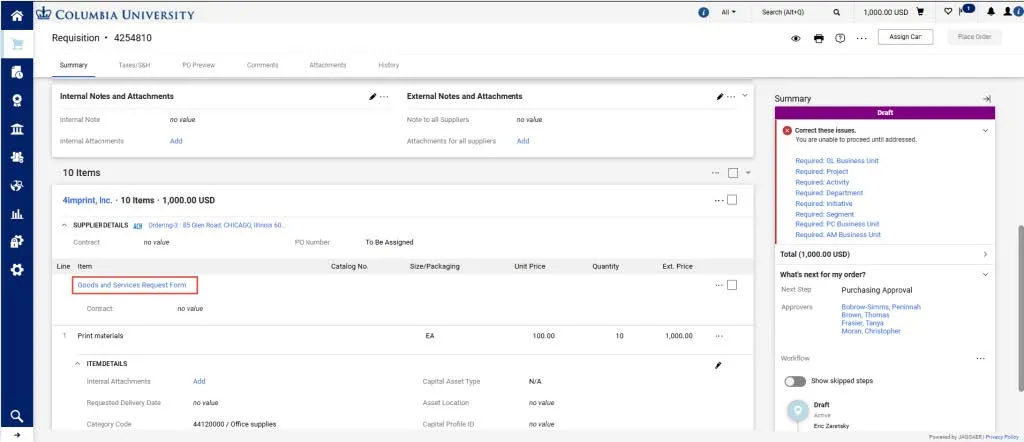
The Goods and Services Request Form appears.
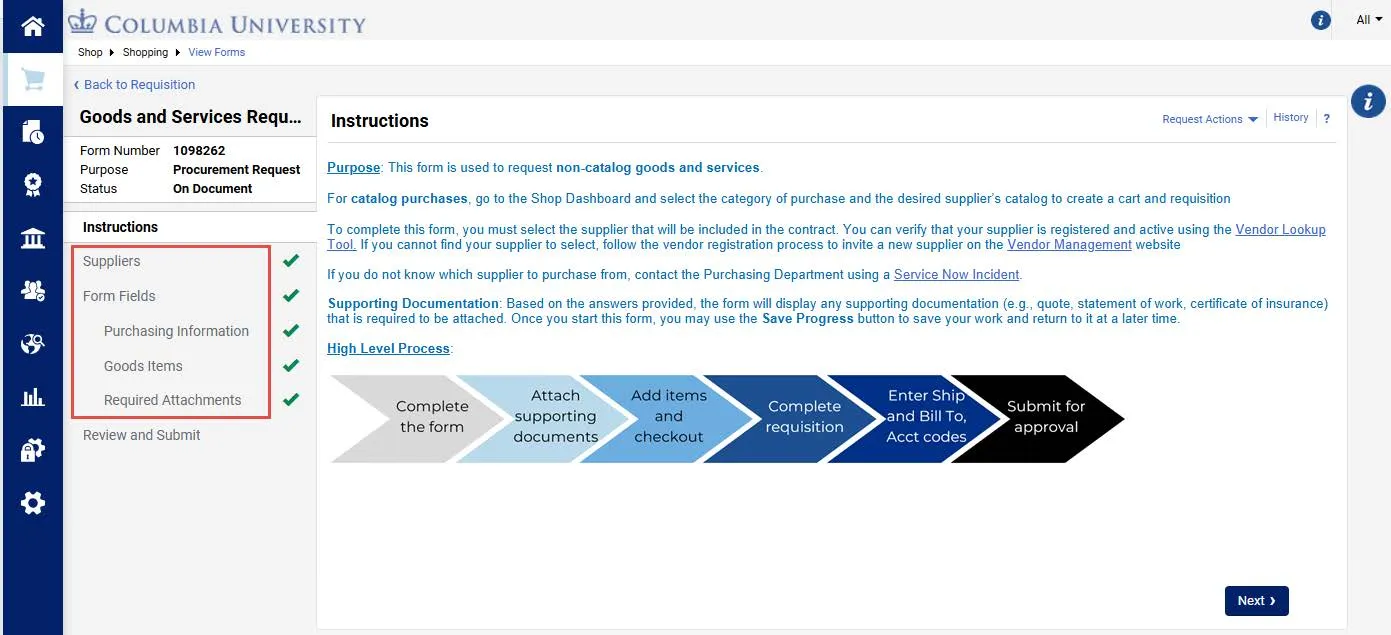
2. Use the left side Navigation panel to locate and edit the relevant section.
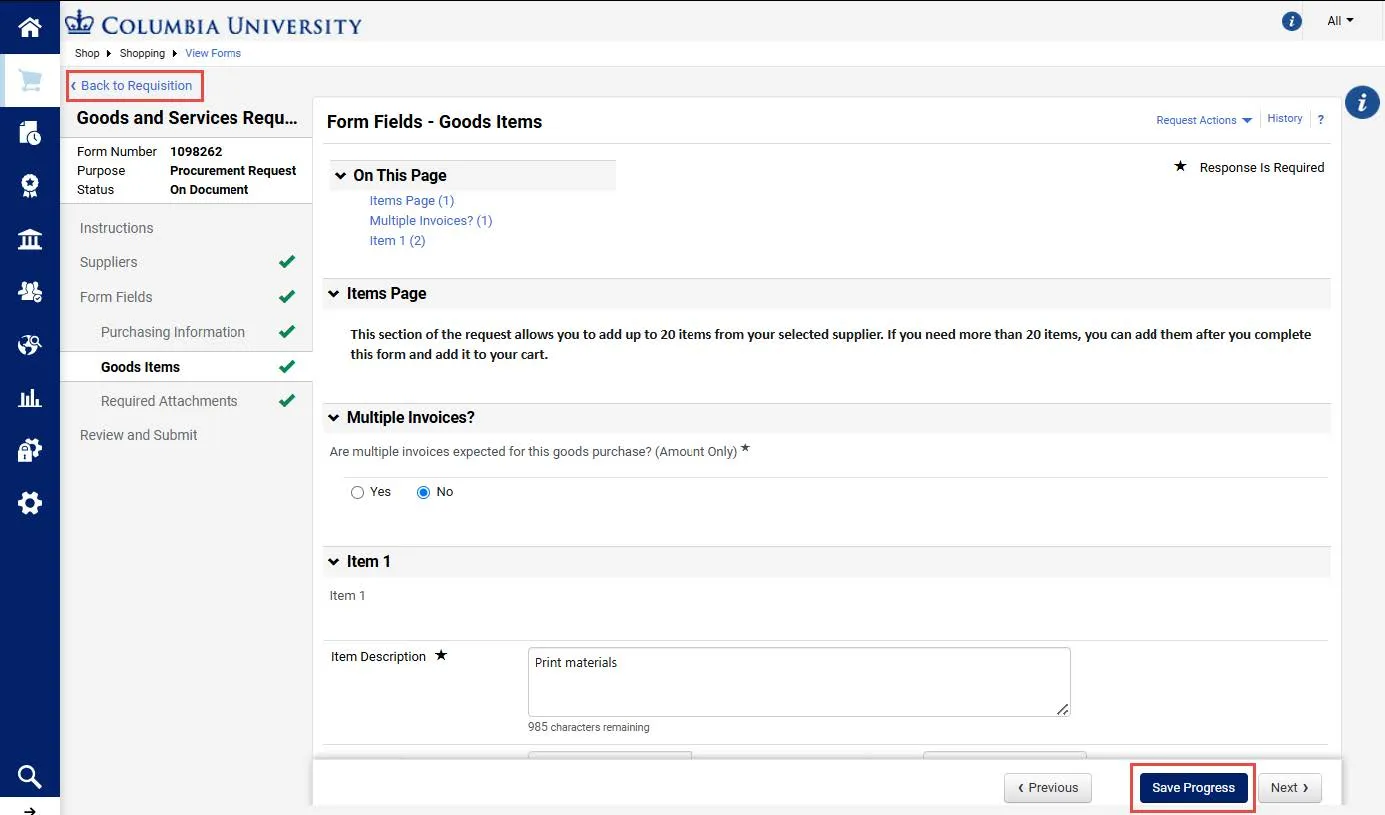
3. Click the Save Progress button to save your edits.
4. Click the Back to Requisition link in the upper left to return to your Requisition. DO NOT click the Add and go to Cart button on the Review and Submit page or else the items in the form will be duplicated in your requisition.