CU Marketplace Pro Tip: Use the Latest Version of Procurement Documents and Forms for Your Non-Catalog Requisitions
What is it?
To ensure compliance and accuracy, always use the most up-to-date versions of the required procurement documents and forms when submitting a Non-Catalog Requisition. Avoid using outdated files by deleting any old versions saved locally on your computer.
You can find the latest versions on the Procurement Forms and Documents website.
Accessing the Latest Procurement Forms for Required Attachments
The Required Attachments page in your Non-Catalog Goods and Services Request form will display a list of Required Attachments based on the Purchasing Information questions answered in the form.
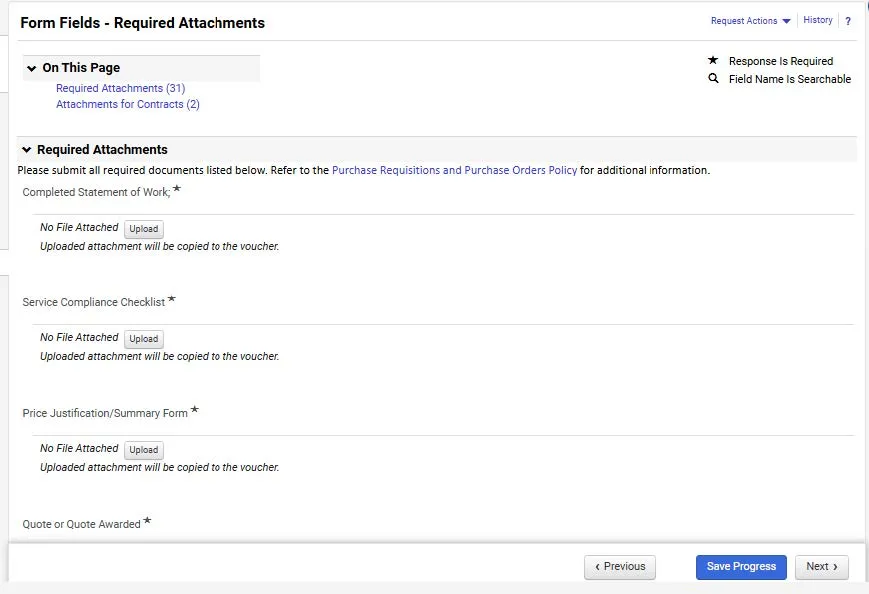
If you need time to gather the necessary Forms or Documents, click Save Progress to pause your submission and return later. If you should exit the Goods and Services Request, you can access it again from the My Goods and Services Requests section on the Orders dashboard.
1. Navigate to the Procurement website's Forms & Documents Library.
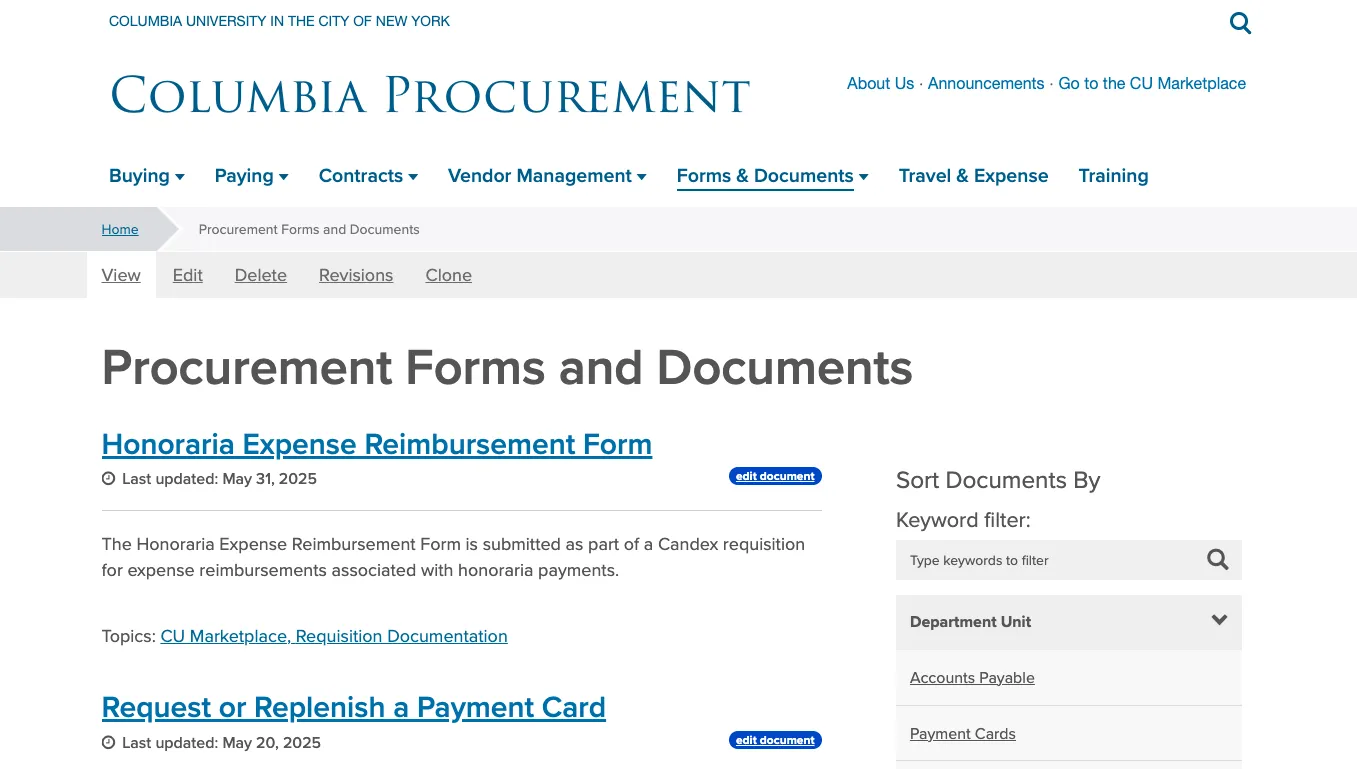
2. Use the Keyword filter to locate the Form or Document listed on the Required Attachments page of your Non-Catalog Goods & Services Form.
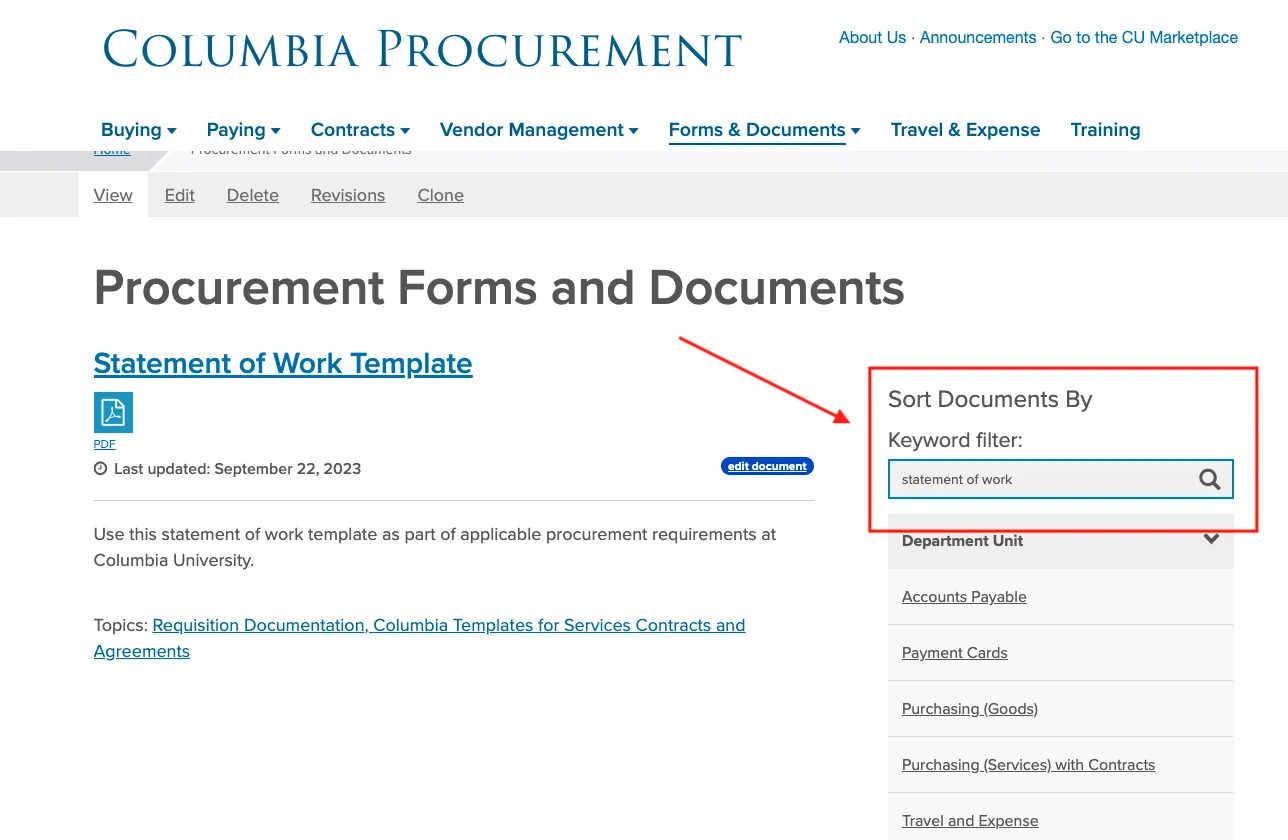
3. Click the link to view the page for that Form or Document.
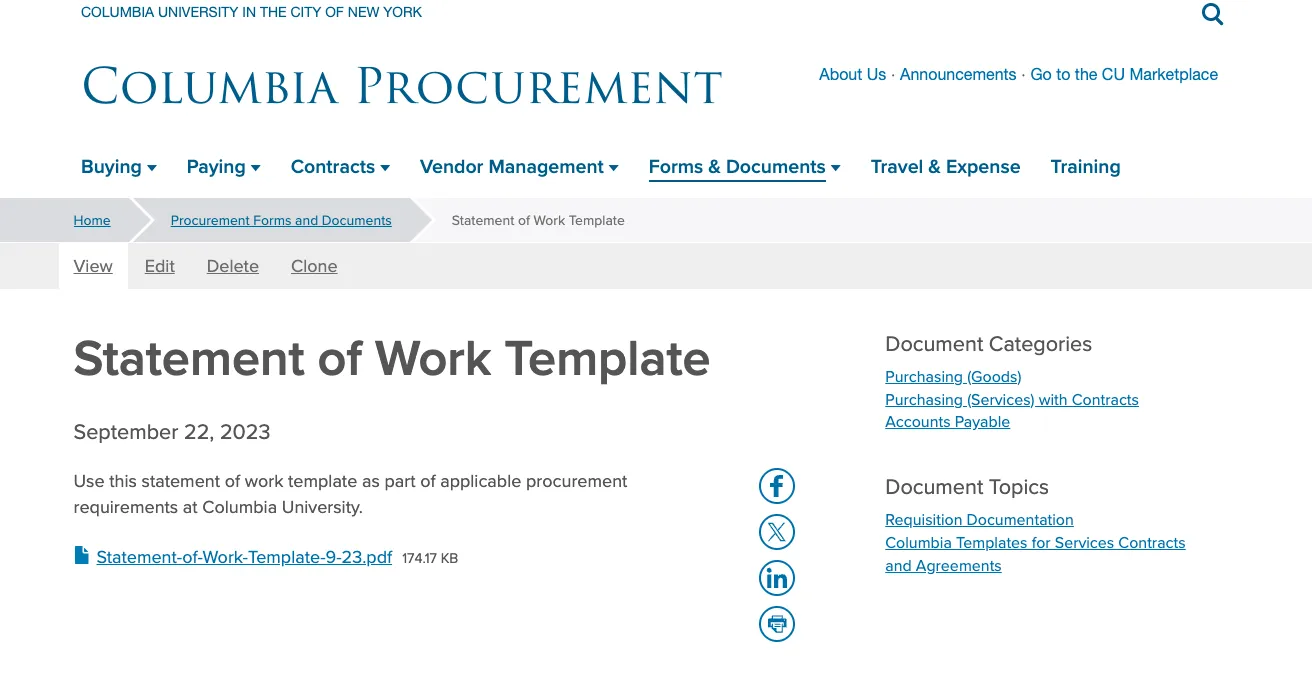
4. Click the file link to download the Form or Document.
Where do I get help?
Contact the Finance Service Center.
Log an incident or request a service via Service Now.