CU Marketplace Tip: Use Comments to add additional Attachments to your documents after they are submitted for approval
What is it?
Comments allow Initiators and Approvers to communicate back and forth within a Requisition or Voucher. An email notification is sent to the recipient via email indicating that a Comment has been added and a conversation thread is contained within the document. You can add attachments after the document is submitted into workflow without having the document be returned by an Approver.
Other reasons for the use of Comments are shared below to help you seamlessly communicate within the CU Marketplace.
- Be proactive and notify your Approver that a document is awaiting their approval.
- Request your Approver return the document to you for editing or if it was submitted with an error.
- Respond to Approvers asking for additional information or documentation.
Adding Comments and Adding Attachments
From within a Requisition or Voucher document:
1. Click the Comments tab.
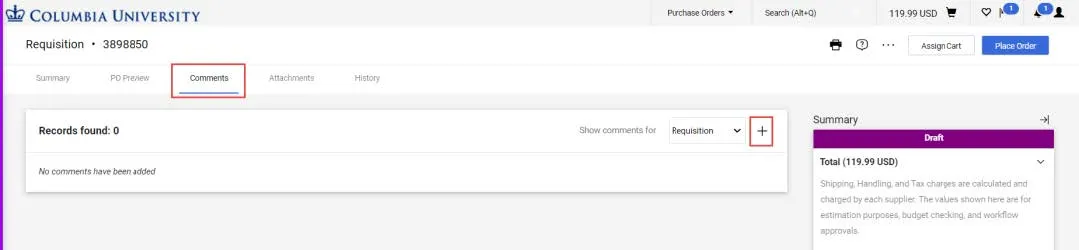
2. Click the New Comments icon. The Add Comment screen appears.
3. Type your Comment.
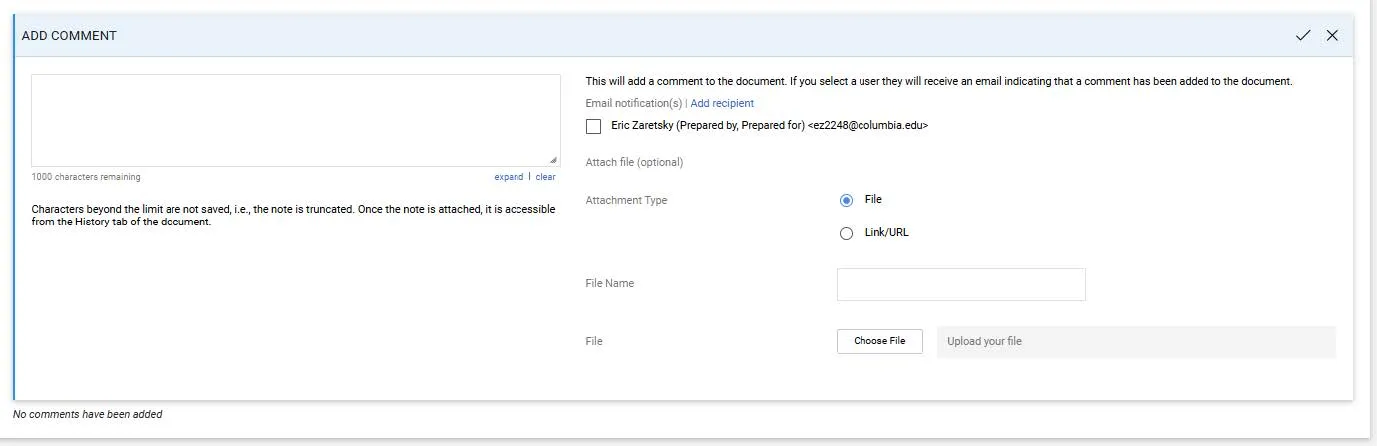
You can select the individuals listed who have worked with your document to receive your Comment as an Email Notification, or, click Add recipients to search for Approvers or other individuals you wish to send your Comment to.
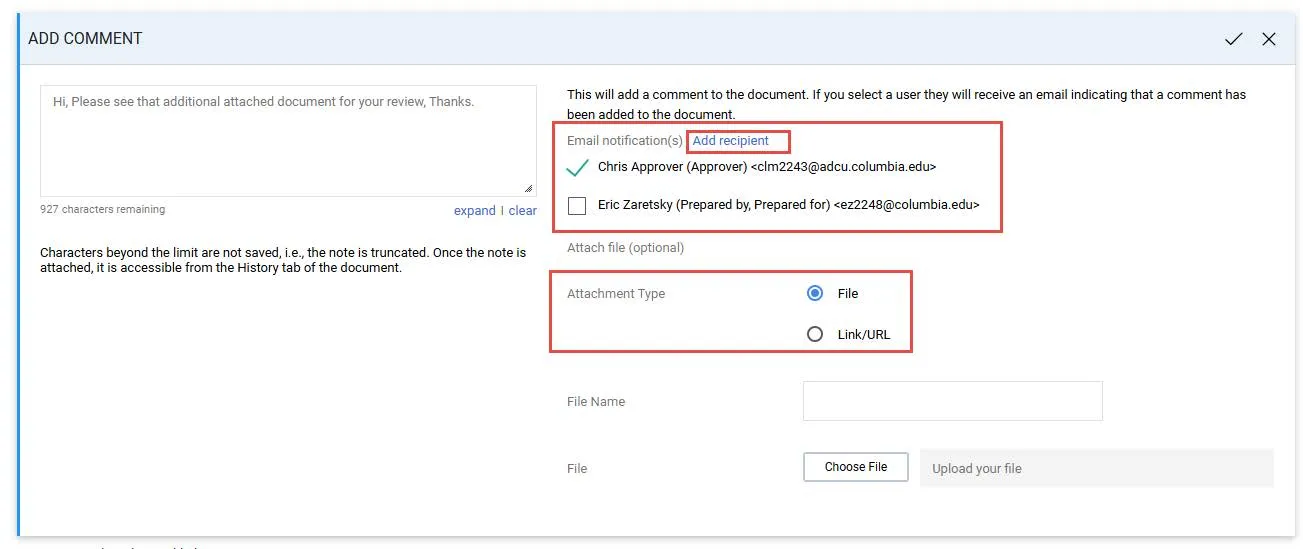
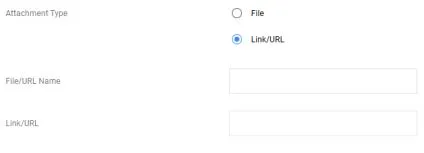
4. Attach a File or Link/URL as part of your Comment. Select the Attachment Type.
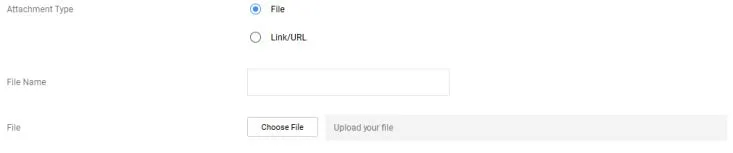
Depending on the Attachment Type, choose your File or provide the Link/URL.
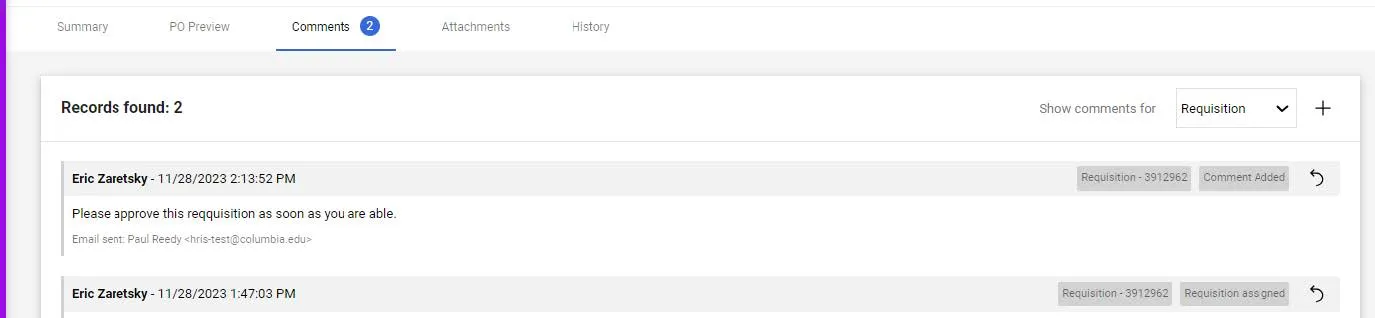
5. Click the Complete icon. Comments are indicated on the Comments tab and listed on the Comments screen.
Where do I get help?
View previous CU Marketplace Tips as well as the CU Marketplace Tips and Best Practices webpage.
Contact the Finance Service Center.
Log an incident or request a service via ServiceNow.