CU Marketplace Tip: How do I find out if a Supplier is set up to receive Purchase Orders?
What is it?
Before creating a Non-Catalog Requisition, search for the Supplier and review their Supplier Information to confirm whether they are set up to receive Purchase Orders. If you have already started your requisition, you can also access Supplier Information directly from the Goods and Services Request Form or at checkout.
For more details, refer to the Supplier Information Quick Guide.
Searching for and Viewing Supplier Information
1. Type the Supplier name in the Quick Search field at the top of the CU Marketplace screen and press Enter. Matching Supplier(s) results are listed.
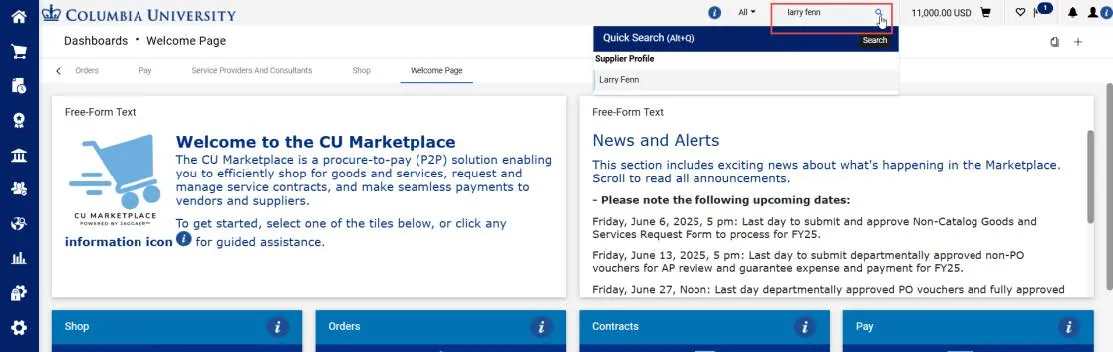
2. Click the matching Supplier name. The Supplier Summary page appears.
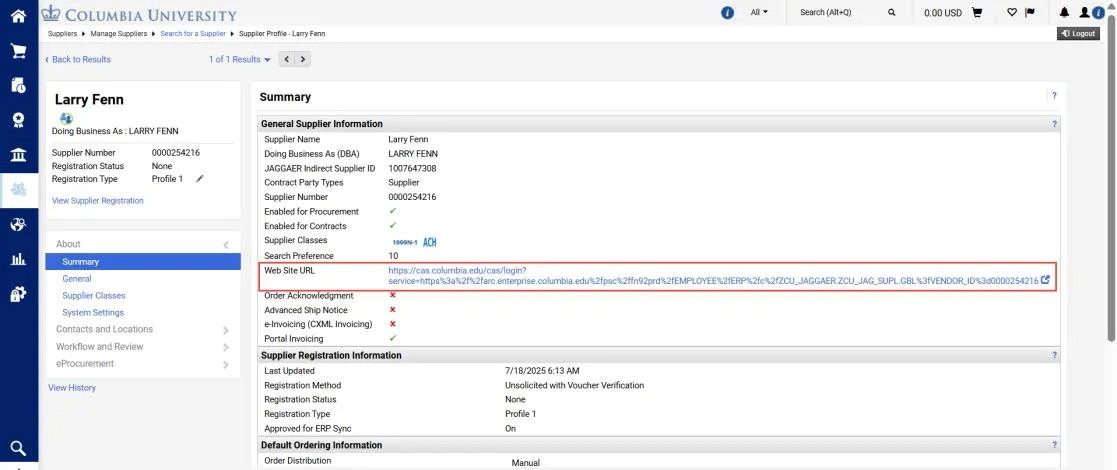
3. Click the Web Site URL to view the ARC Supplier Info page.
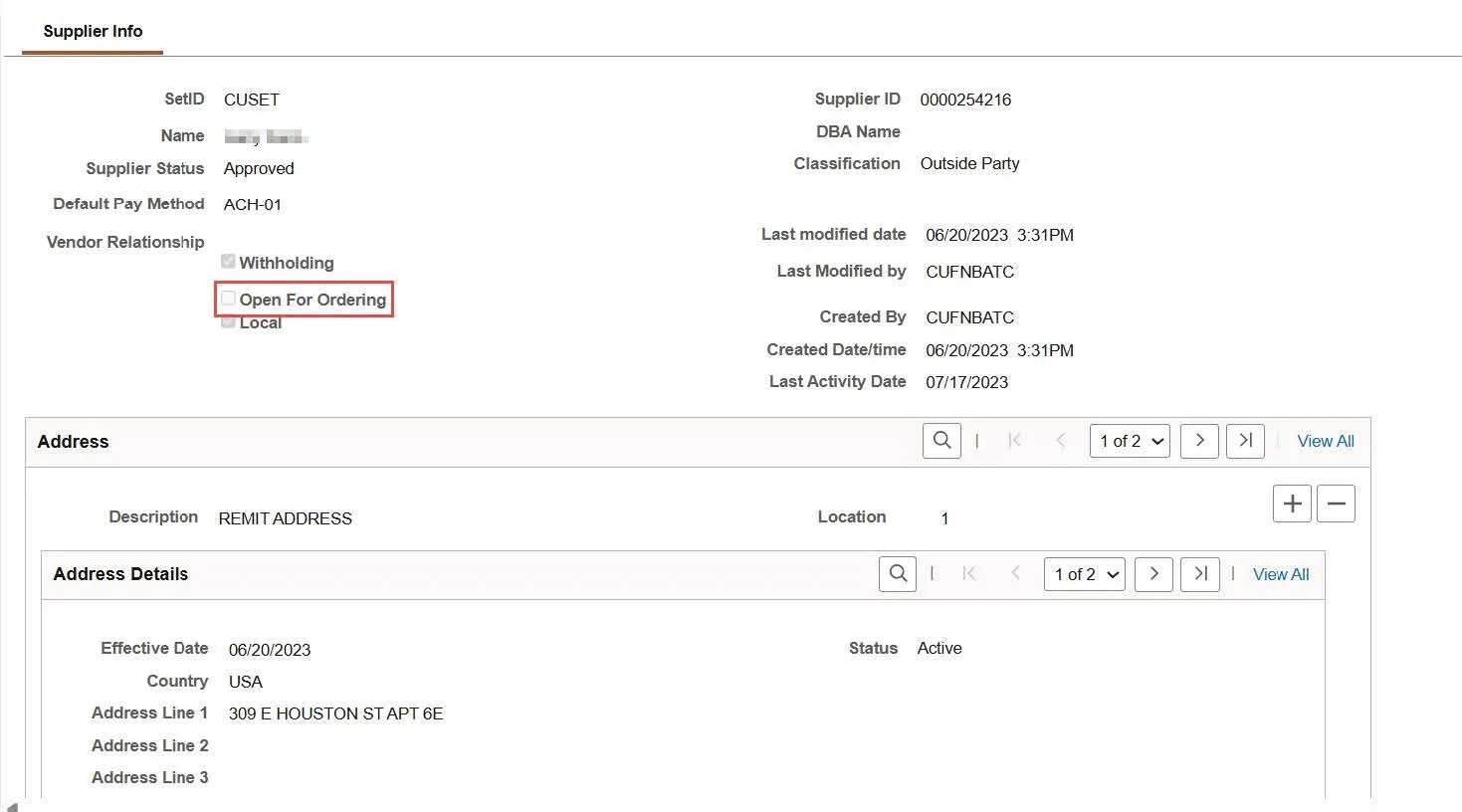
If a Supplier is set up to receive Purchase Orders (POs), the Open for Ordering field will contain a check mark. Be aware that if you add a Supplier to a Goods and Services Request Form where the Open for Ordering field does not contain a check mark, a PO cannot be issued. If a Supplier needs to have a PO issued to them and they are not Open for Ordering, you must have the Supplier edit their existing PaymentWorks profile or invite the Supplier to onboard via PaymentWorks. Refer to the Vendor Management website for more information.
Viewing Supplier Information from a Goods and Services Request Former Requisition
1. From the Suppliers page of the Goods and Services Request Form, click the Supplier Name either from the search results or from the Supplier that you selected for the request.
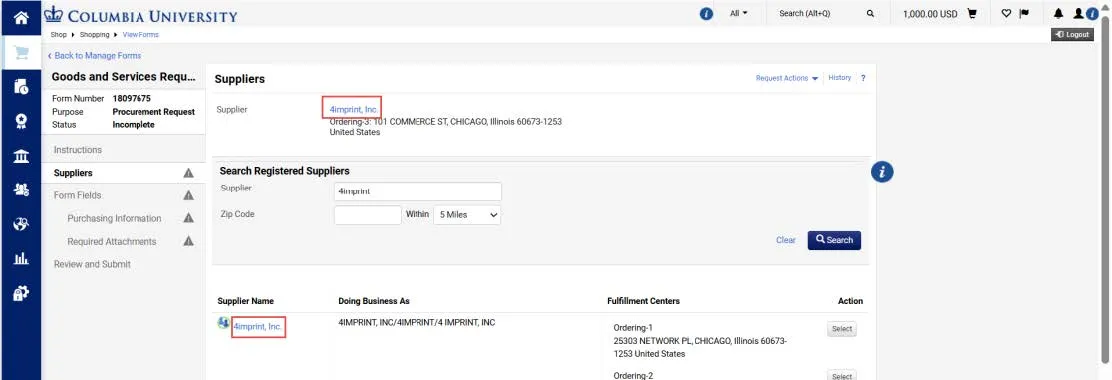
Or, from the Requisition at checkout, click the Supplier Name from the Items section.
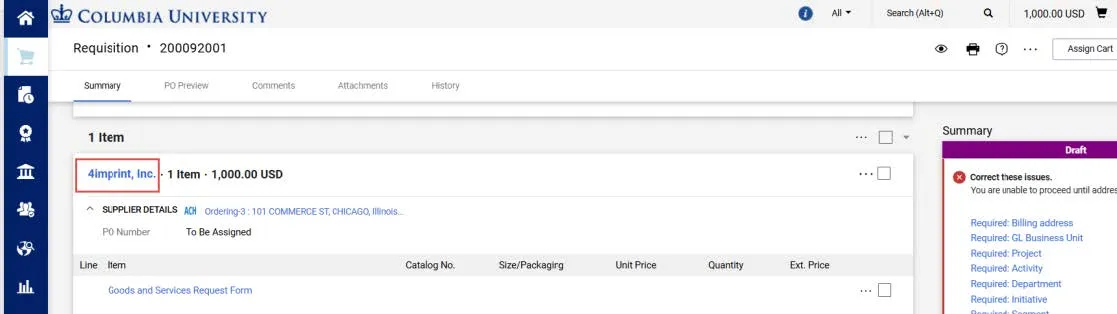
The Supplier information window appears.
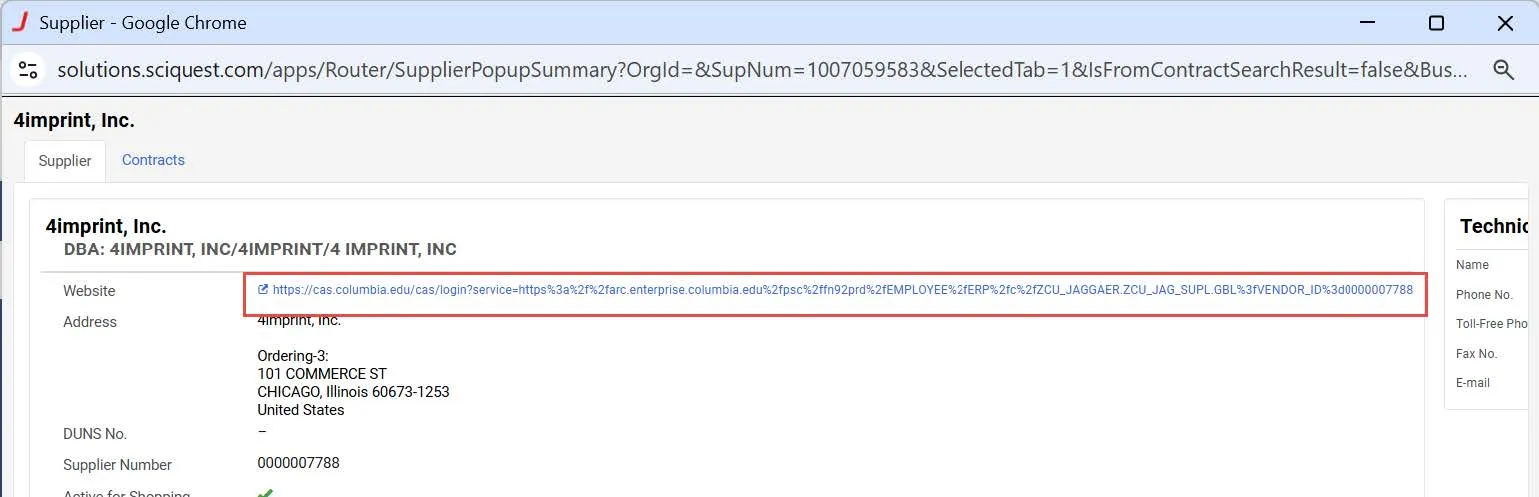
2. Click the Website link to view the ARC Supplier Info page.
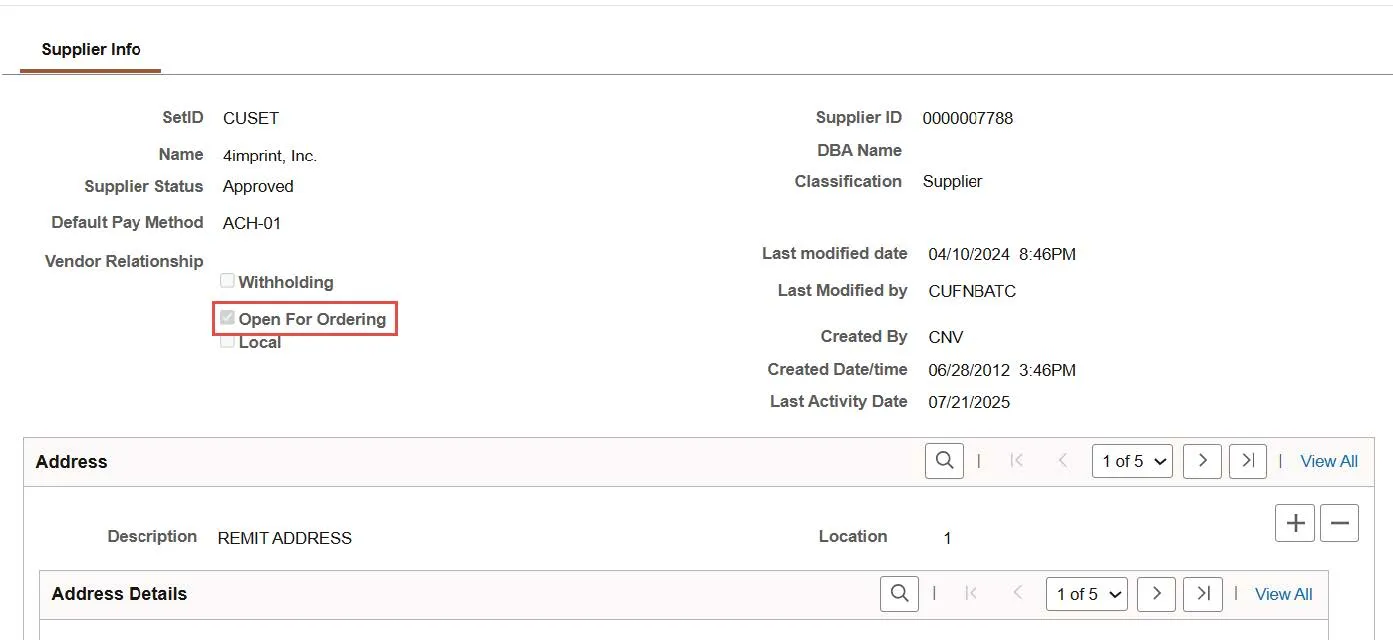
If a Supplier is set up to receive Purchase Orders (POs), the Open for Ordering field will contain a check mark.
Be aware that if you add a Supplier to a Goods and Services Request Form where the Open for Ordering field does not contain a check mark, a PO cannot be issued. If a Supplier needs to have a PO issued to them and they are not Open for Ordering, you must have the Supplier edit their existing PaymentWorks profile or invite the Supplier to onboard via PaymentWorks. Refer to the Vendor Management website for more information.
Where do I get help?
View previous CU Marketplace Tips as well as the CU Marketplace Tips and Best Practices webpage.
Contact the Finance Service Center.
Log an incident or request a service via ServiceNow.